
Our app will change the way we connect with both people visiting Saint Michael for the first time and those who call Saint Michael home. Whether it’s registering for upcoming events, checking out the latest podcast, or checking in to Sunday Classes, you will now be able to stay connected 24/7.
App Support
Having issues logging in or creating an account in the app? Is something not working in the app? Do you have questions about the app? Fill out the App Support Form or email app@saintmichael.org to let us know.
How To...
Right from the Saint Michael app on your phone or tablet, you can:
- Listen to the most recent sermons
- Tune into Rector’s Bible Study recordings and podcasts
- Explore upcoming events
- Make your annual pledge or make a gift
- View your giving history
- Register and check in for upcoming events and classes
- Connect with your groups
- Submit prayer requests
- Access the Member Directory
- Manage your serving schedule
- And so much more!
Click the link below to download the app to your phone!
App FAQs
MY GIVING isn't showing up.
It takes about an hour for ‘My Giving History’ to show up after you initially log into the first time or if you’re logged out and log back in. If you’re signed in and still don’t see your transaction history, try completely closing and reopening the app.
If you need further assistance, please fill out the App Support Form here or email app@saintmichael.org.
Opening the App for the First Time
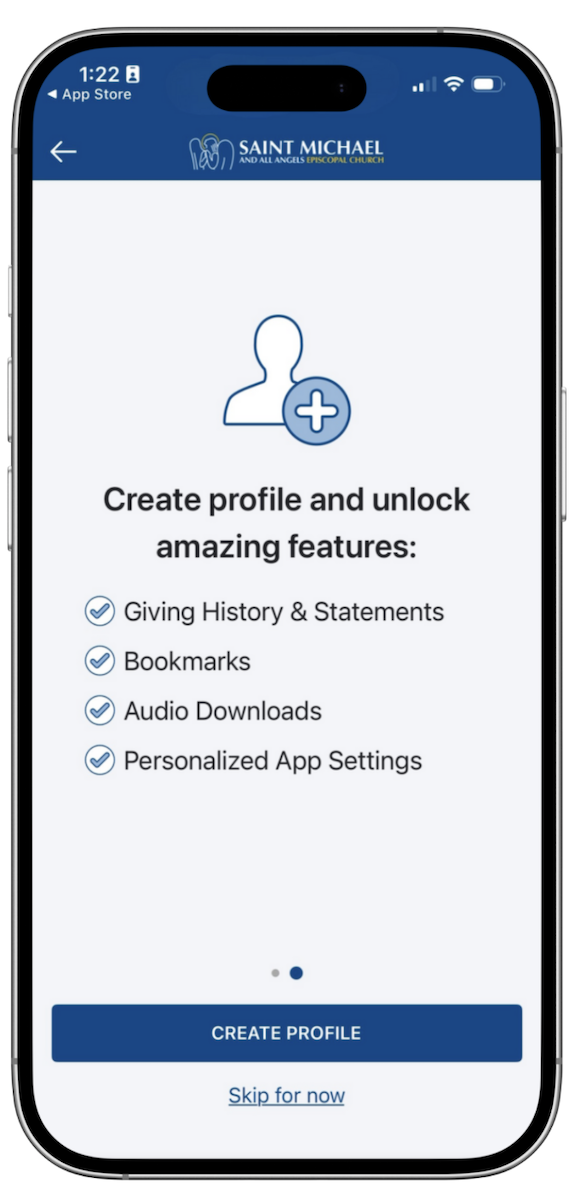
When you open the app for the first time, you will have the option to ‘Create a profile.’ If you are a member at Saint Michael, we highly recommend creating an app profile to unlock additional app features. Please follow the steps below to create a profile.
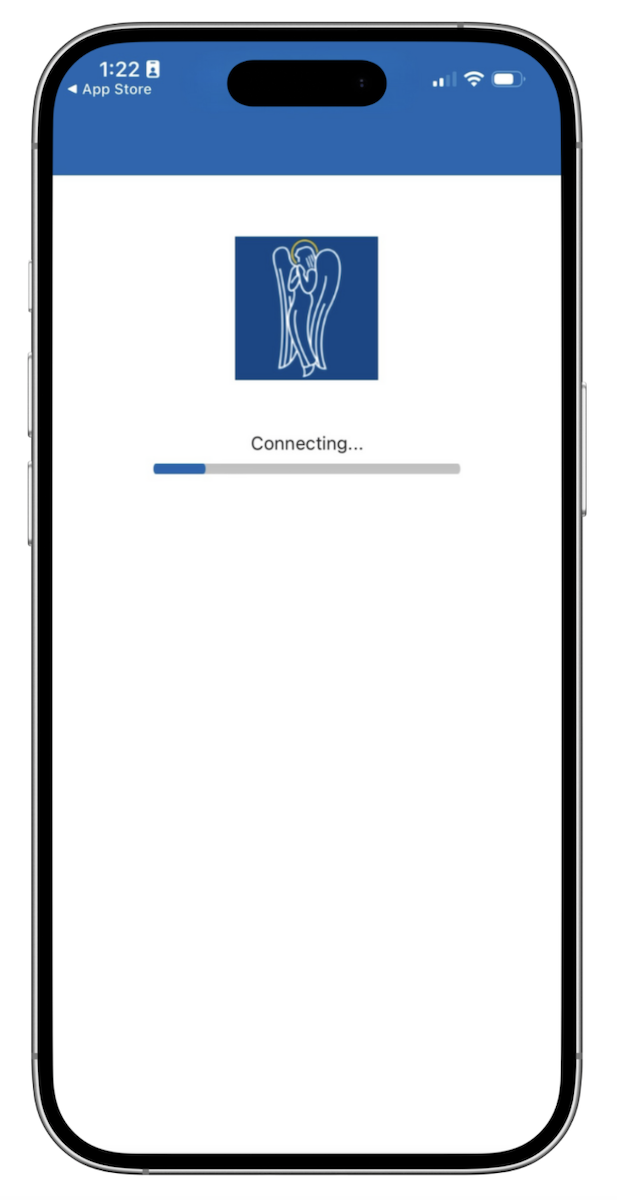
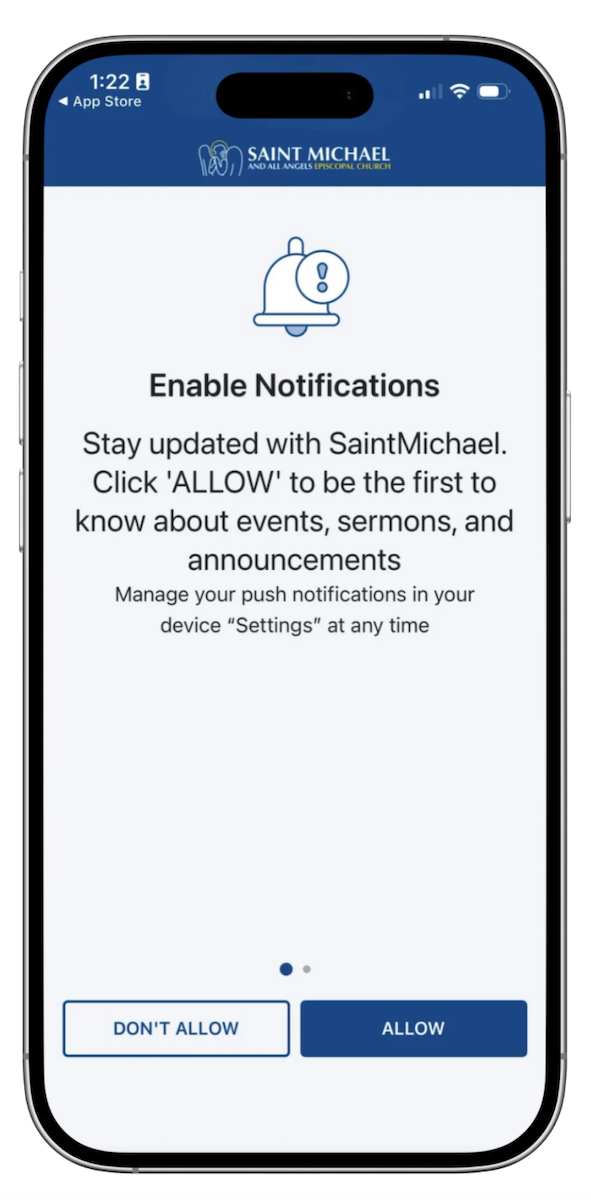
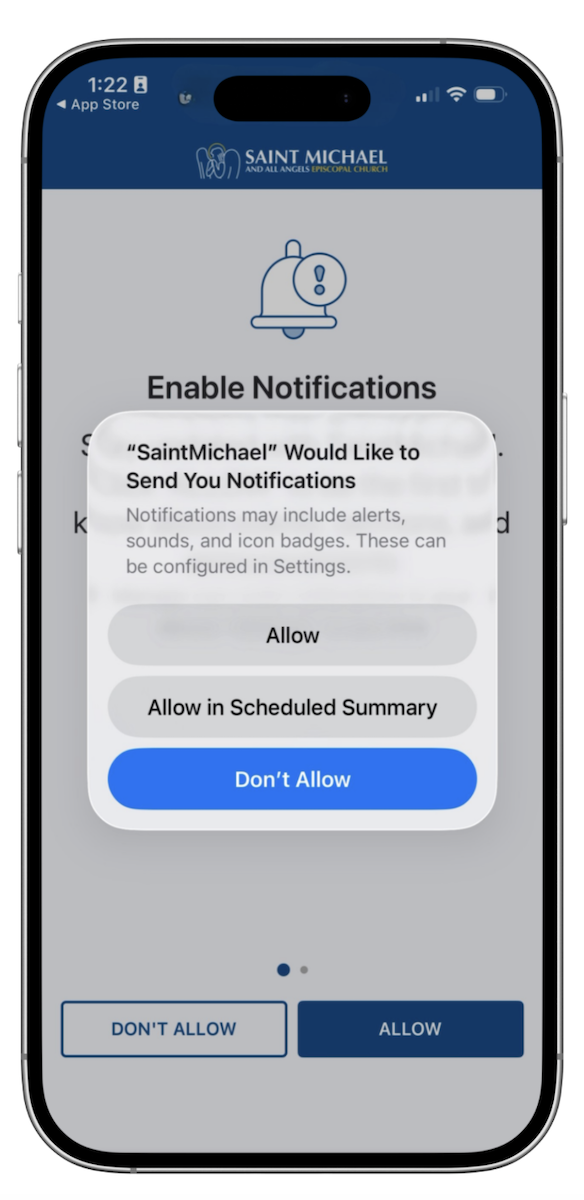
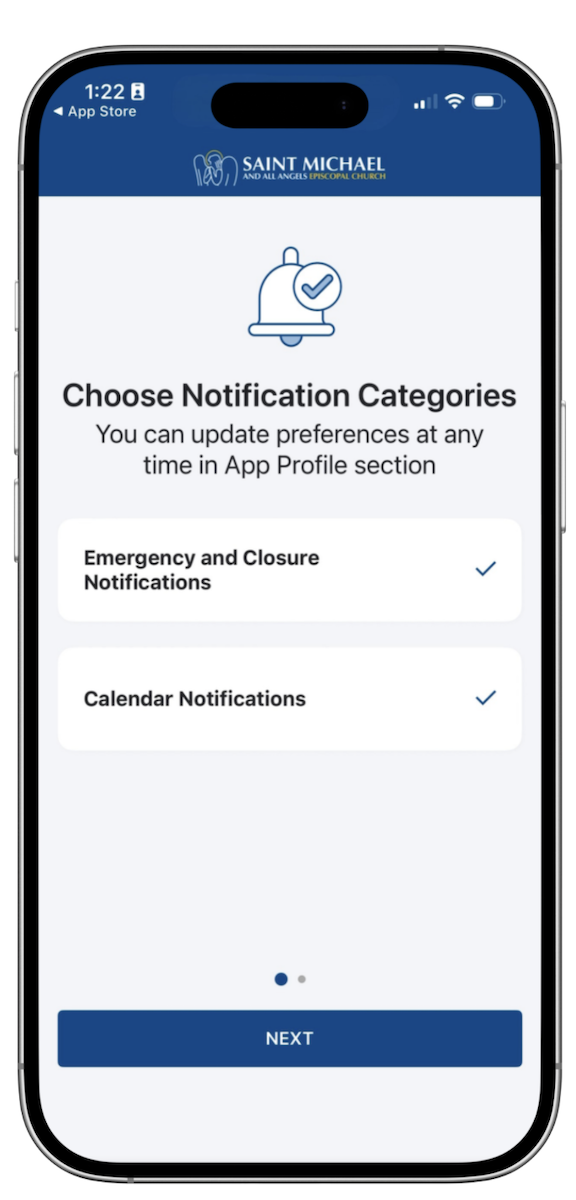
1. Open the app and enable notifications
We recommend that parishioners have “Emergency and Closure Notifications” enabled.
2. Create a profile
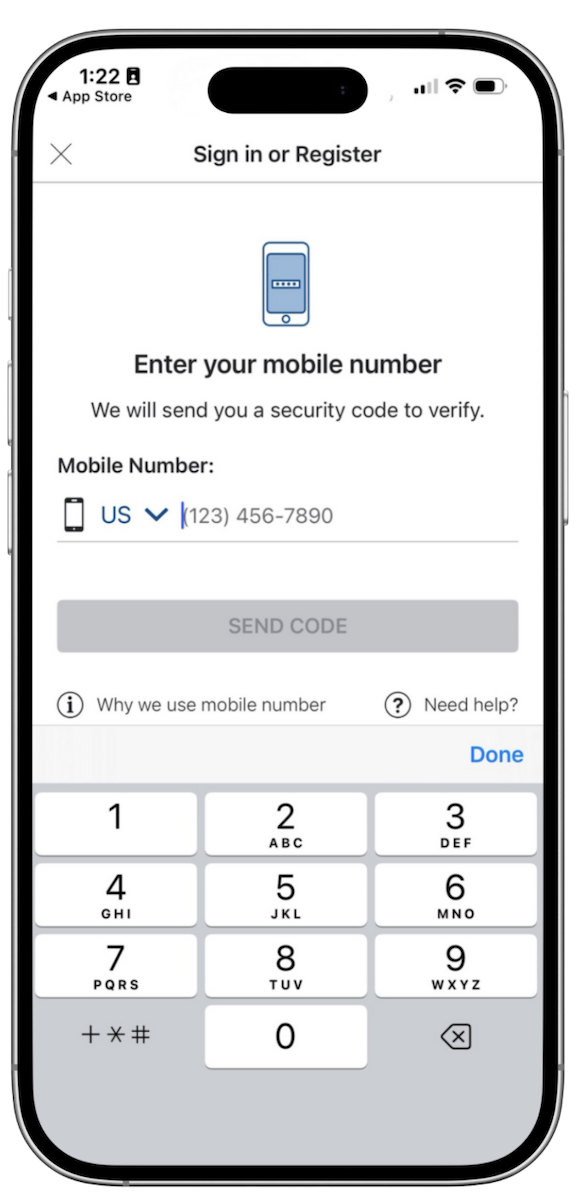
To create a profile, enter your phone number. If you have multiple phone numbers, please use the phone number that is used for your member record.
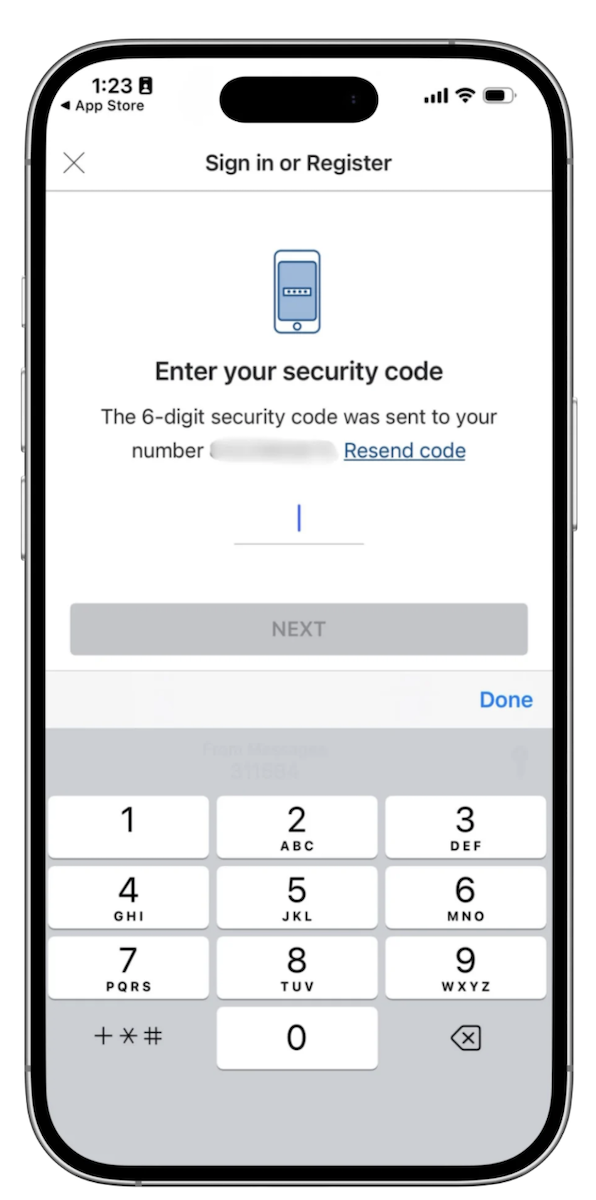
After you enter your phone number, you will receive a 6-digit security code via text message. Enter the 6-digit security code into the app and click “Next.”
Profile Email Confirmation
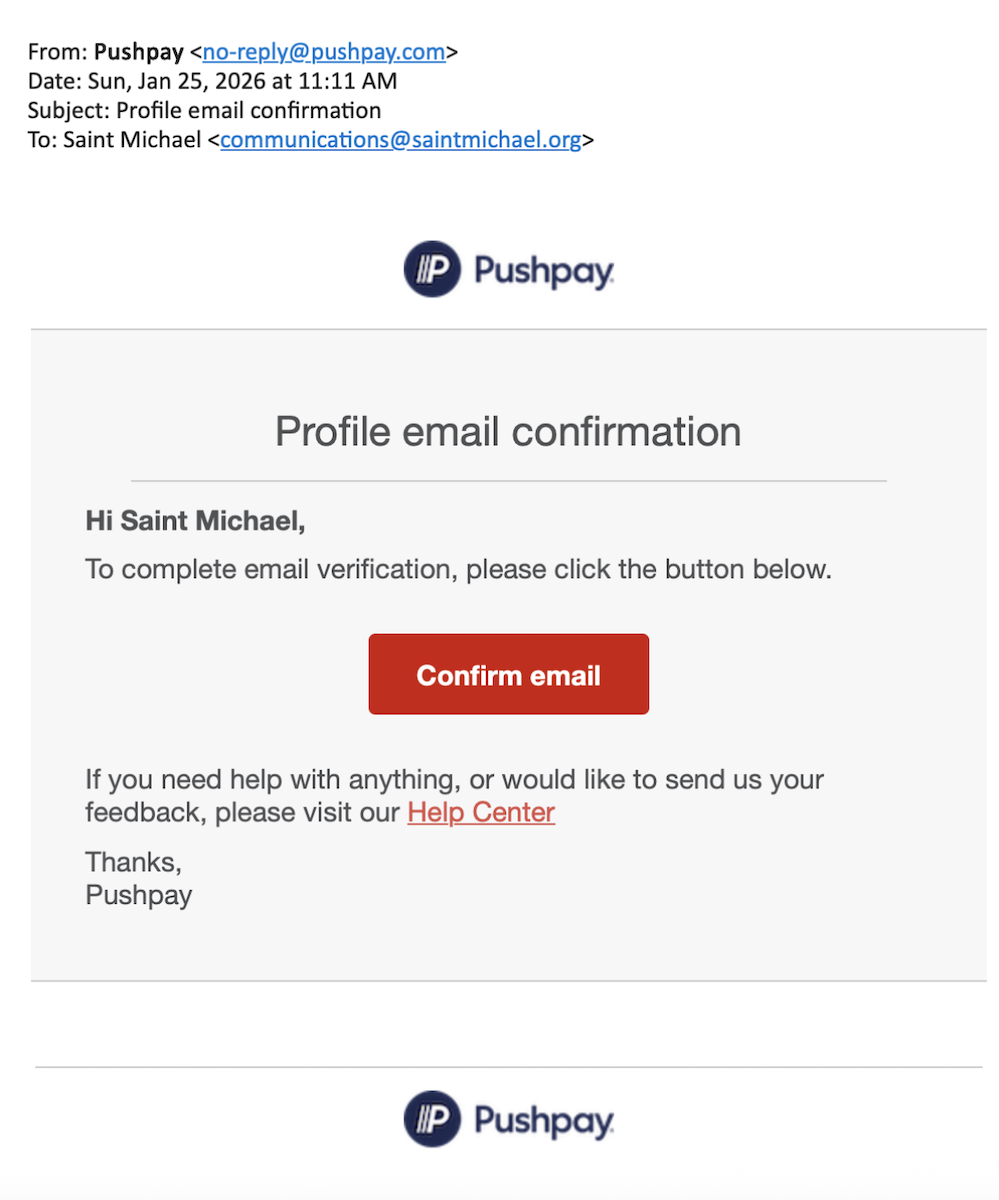
After entering your phone number, you will receive an email from Pushpay (no-reply@pushpay.com) with “Profile Email Confirmation” as the subject line.
Click the red “Confirm email” button in the email to complete profile verification.
If you do not see the email in your inbox, please check your spam folder.
3. View your profile and explore the app
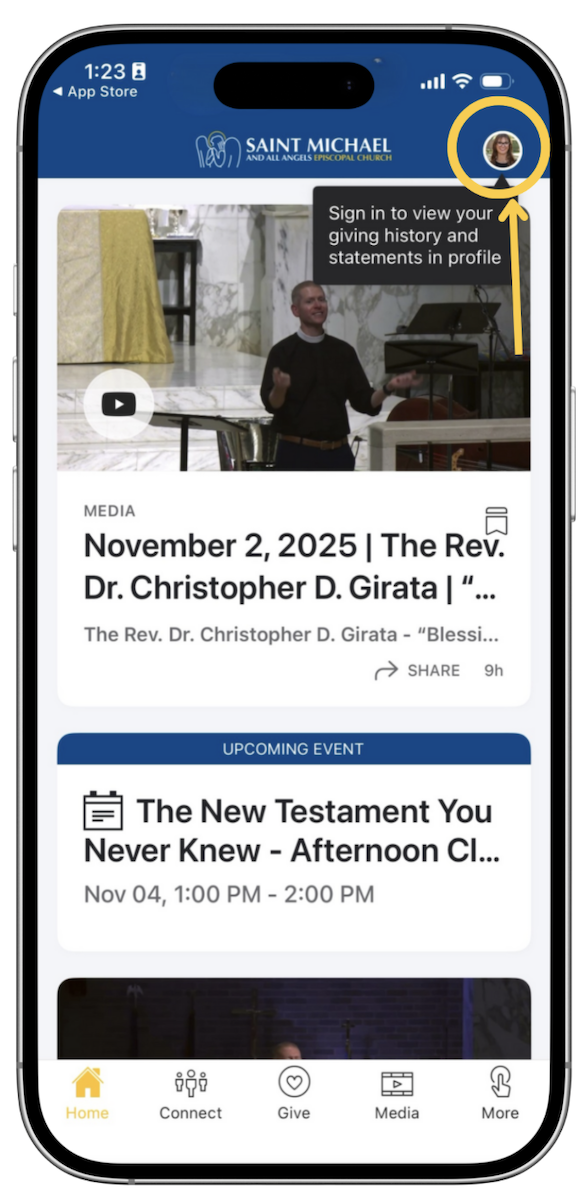
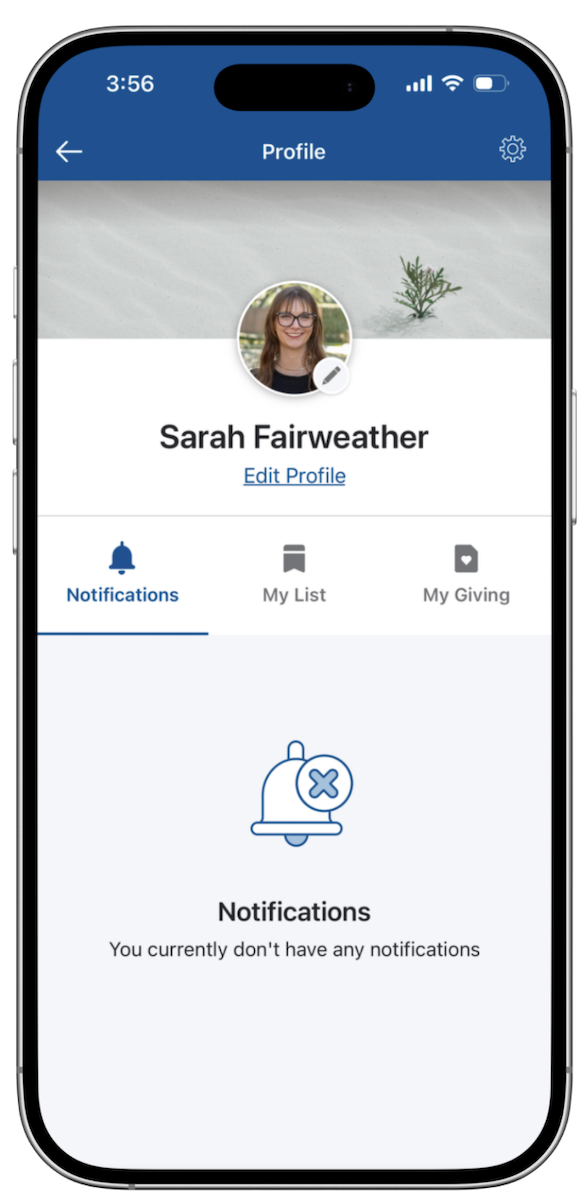
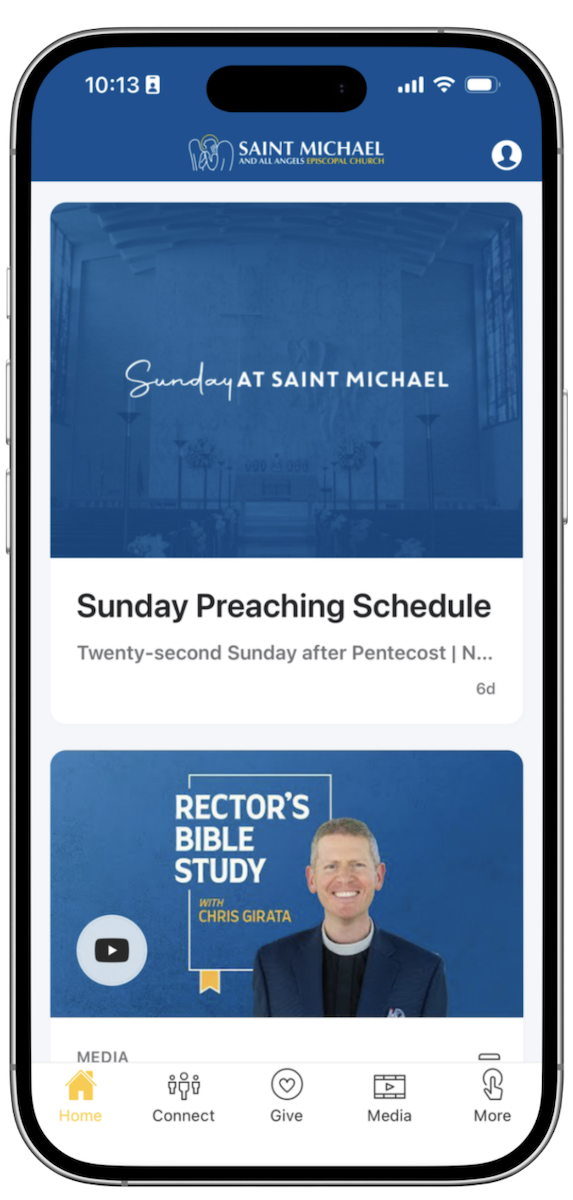
Once you are logged in to the new app, take a look around!
Note: It may take up to 1 hour after logging in for “My Giving” to appear under your profile.
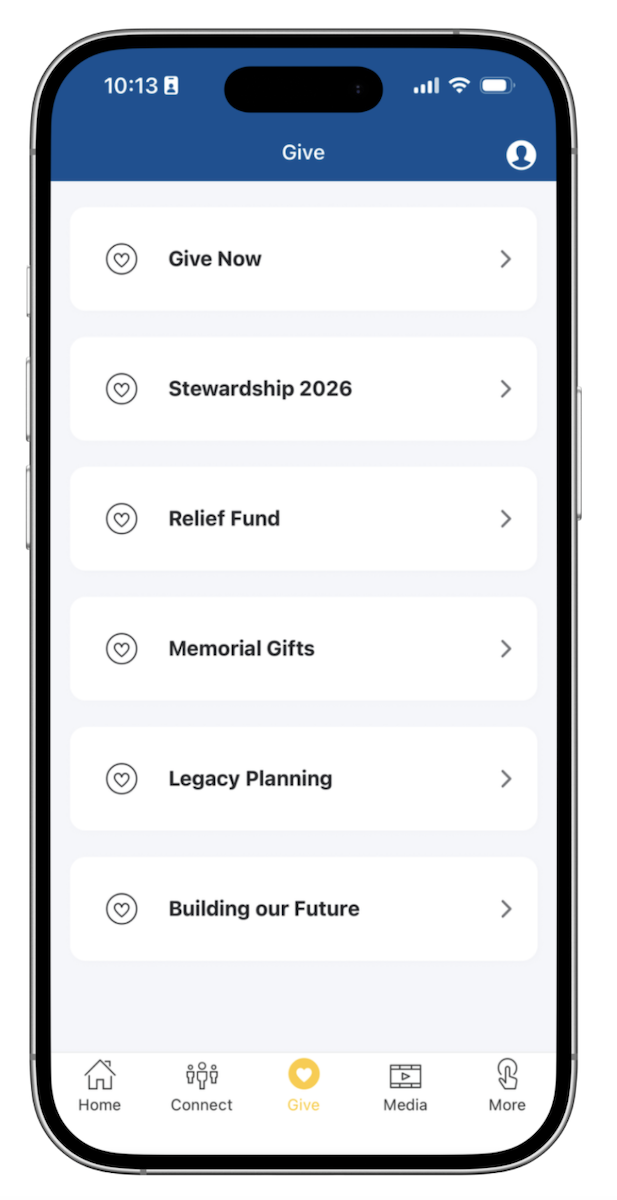
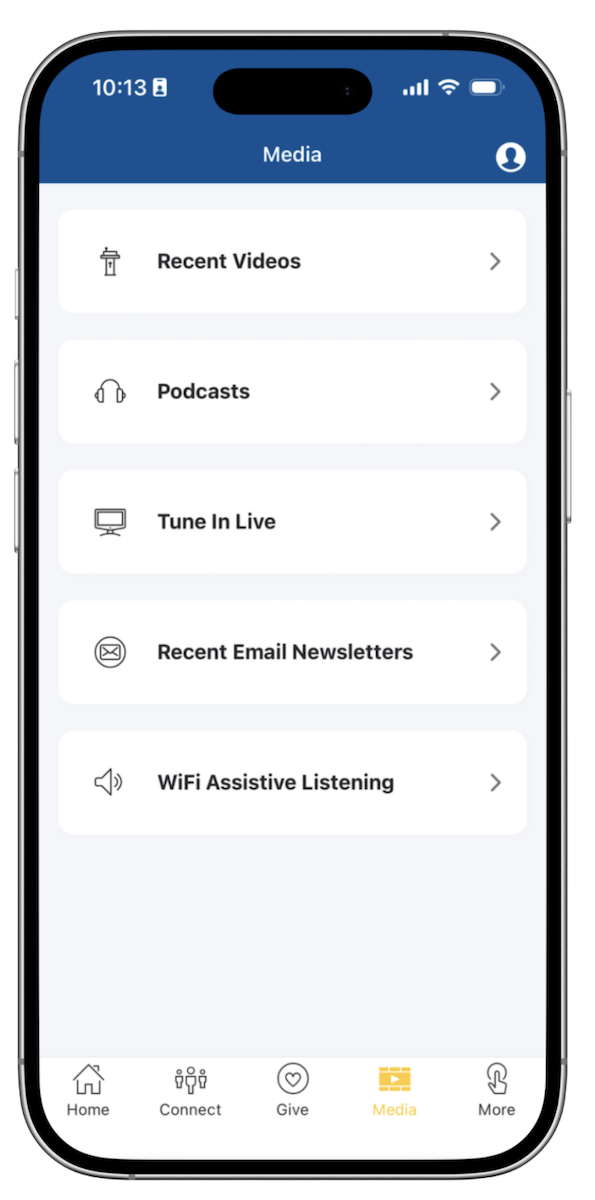
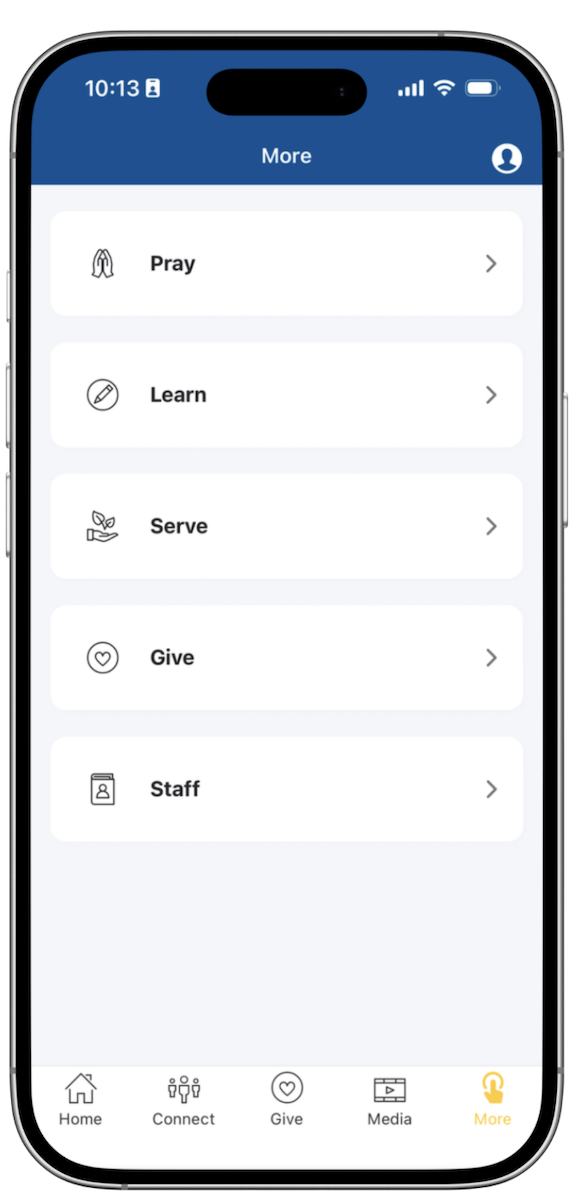
Membership Directory
In order to access the member directory, you must be a member at Saint Michael and have an activated login. If you did not receive an email to activate your login, please fill out this form to request access.
Please note: The activation email will come from saintmichael@ccbchurch.com with a subject line of "New Login Created." *If this email is not in your inbox, check your junk and/or spam folder.
Access the Member Directory from the App
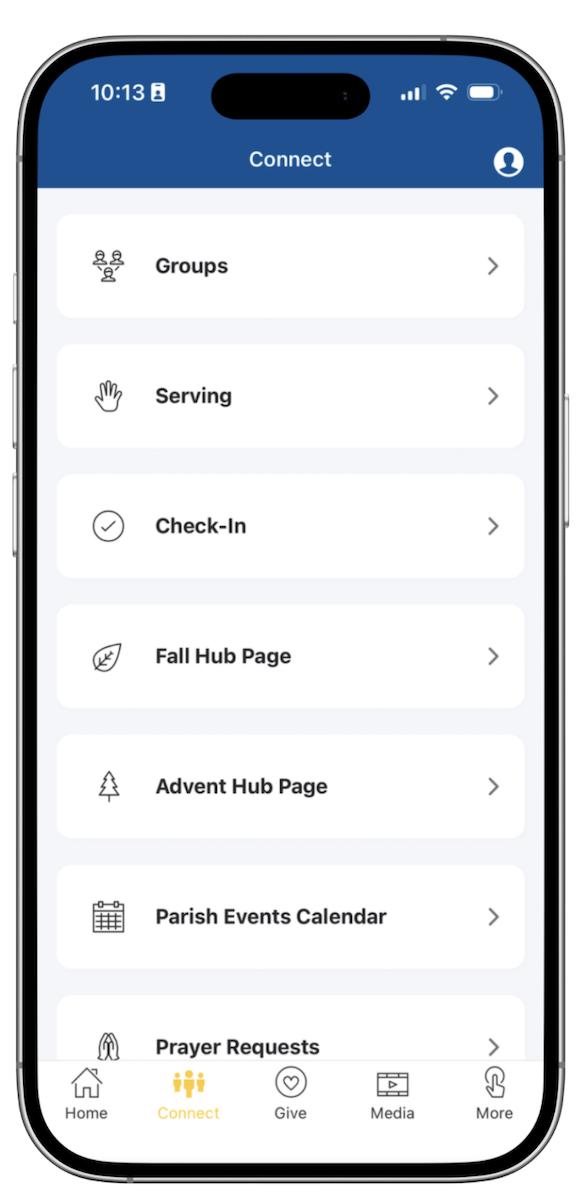
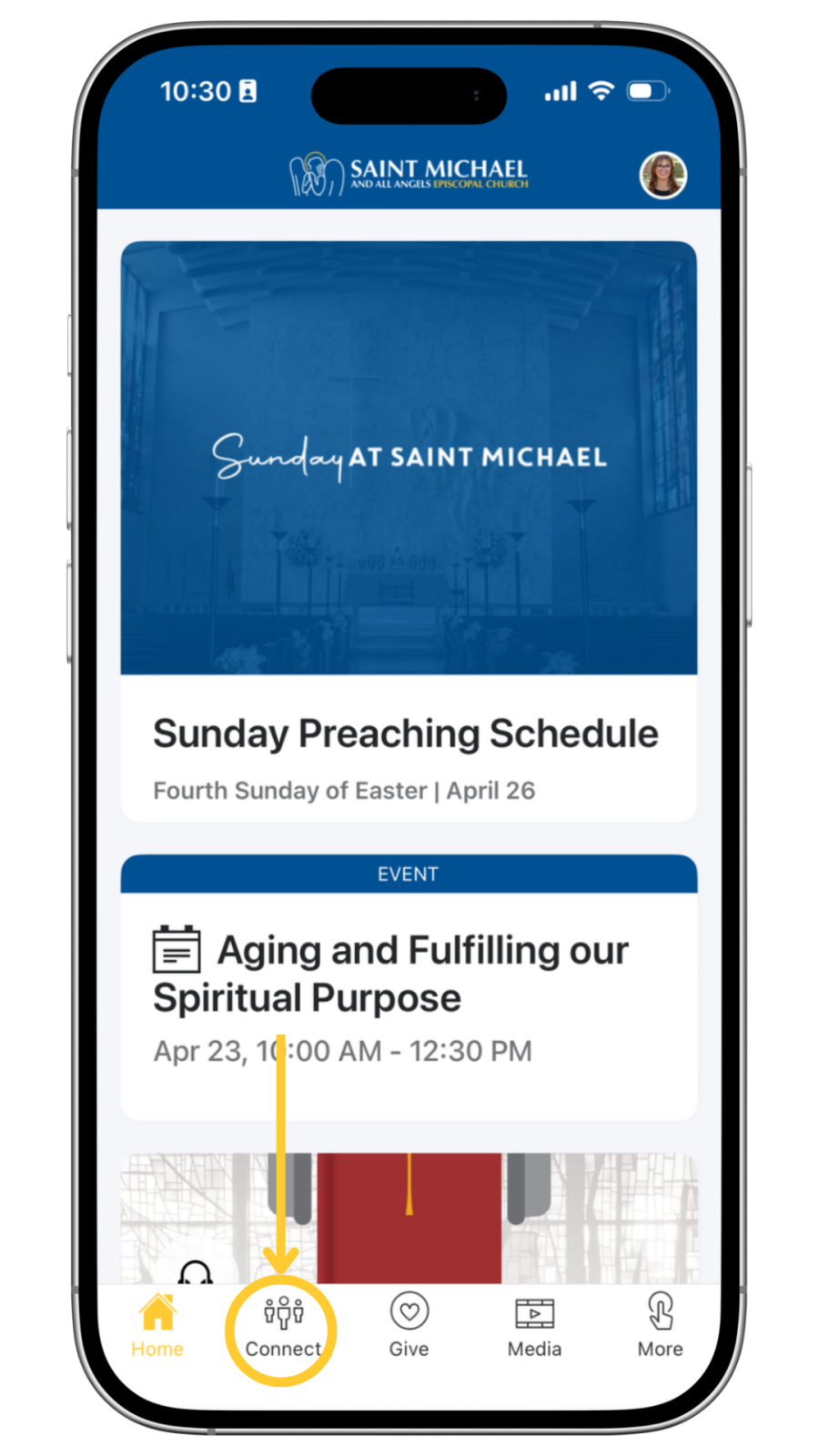
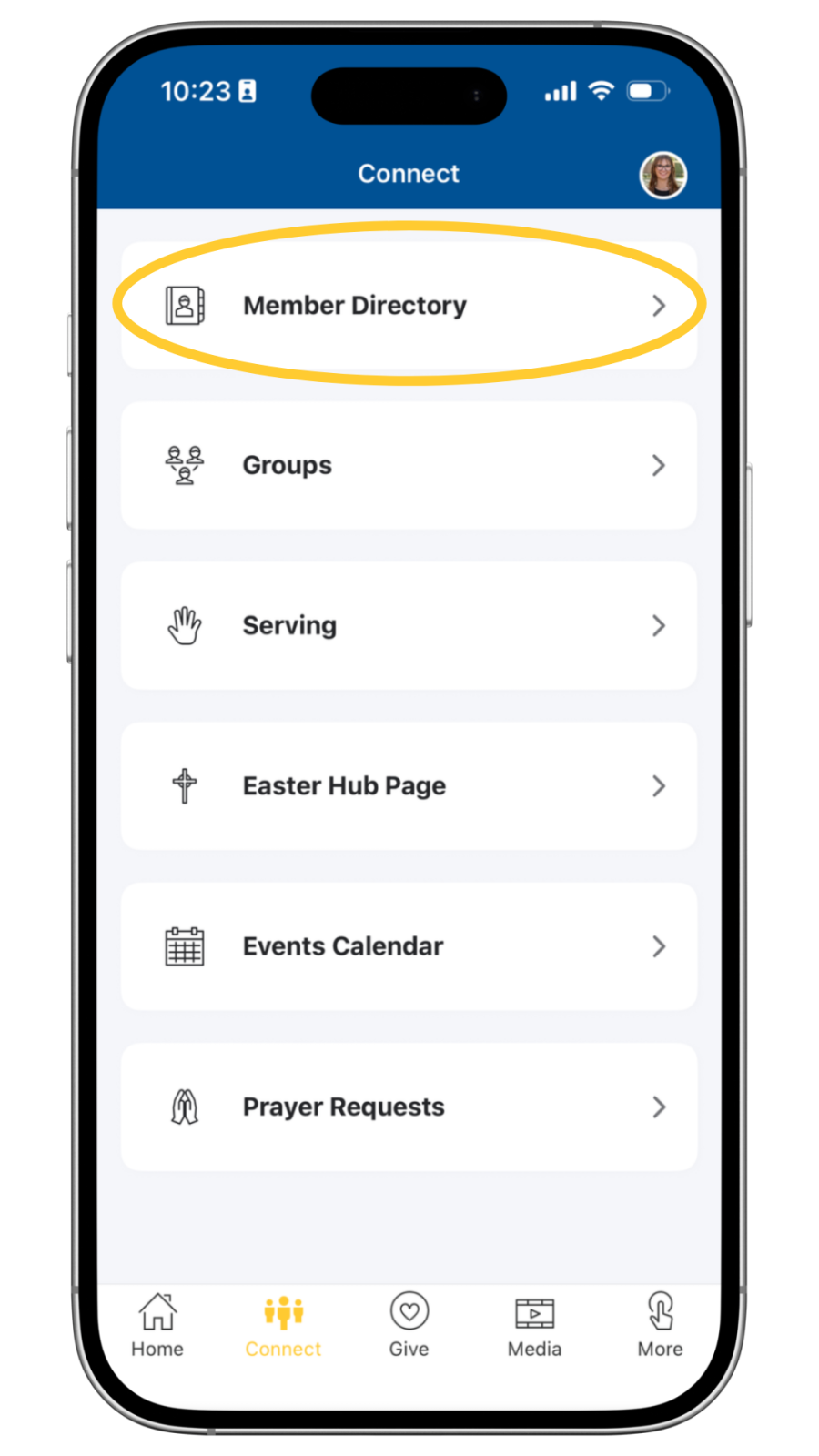
- From the Home Screen in the Saint Michael App, click on the “Connect” tab in the bottom bar.
- In the Connect tab, choose “Member Directory.”
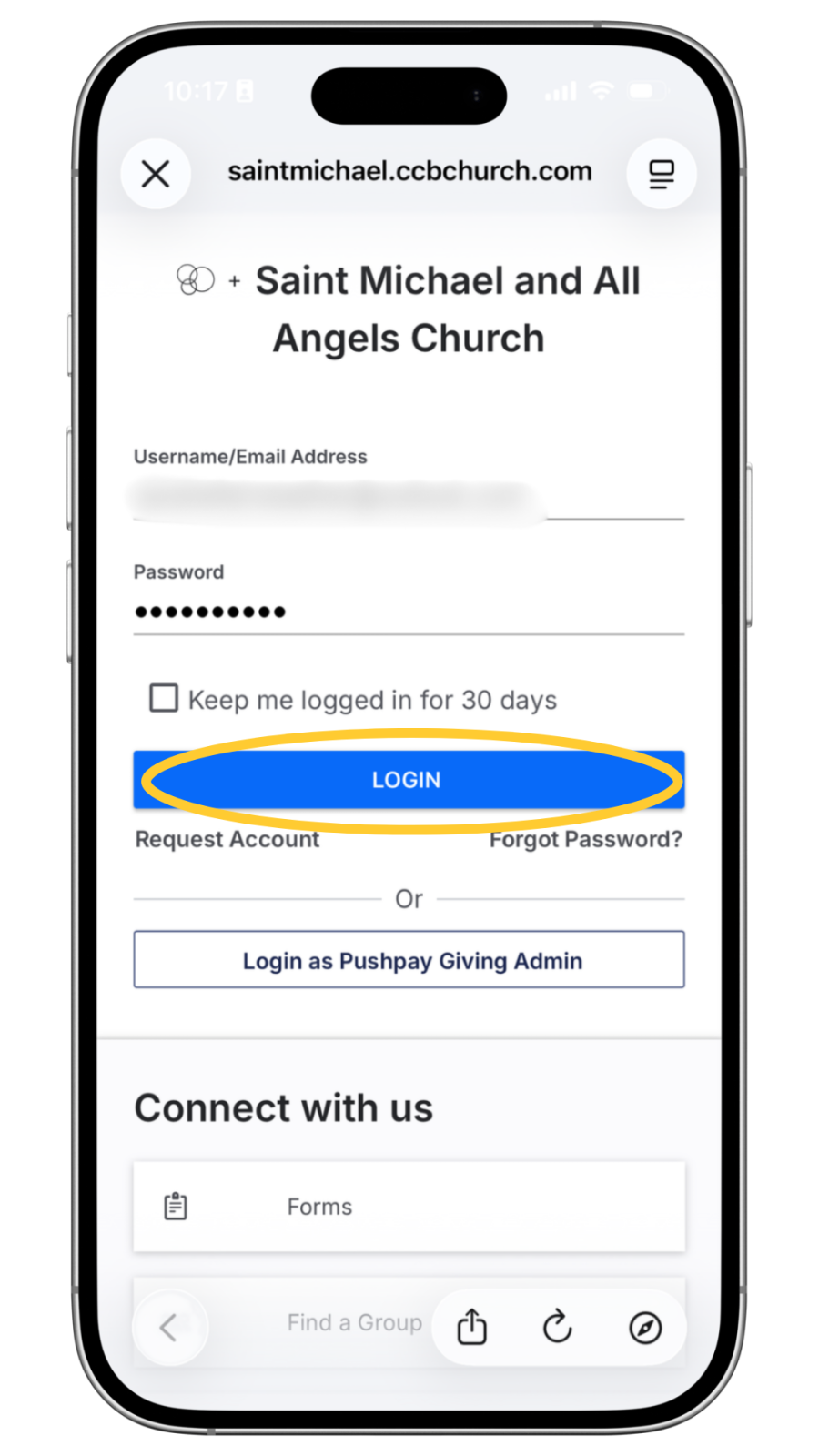
- Enter your Username/Email Address and Password. Click "login."
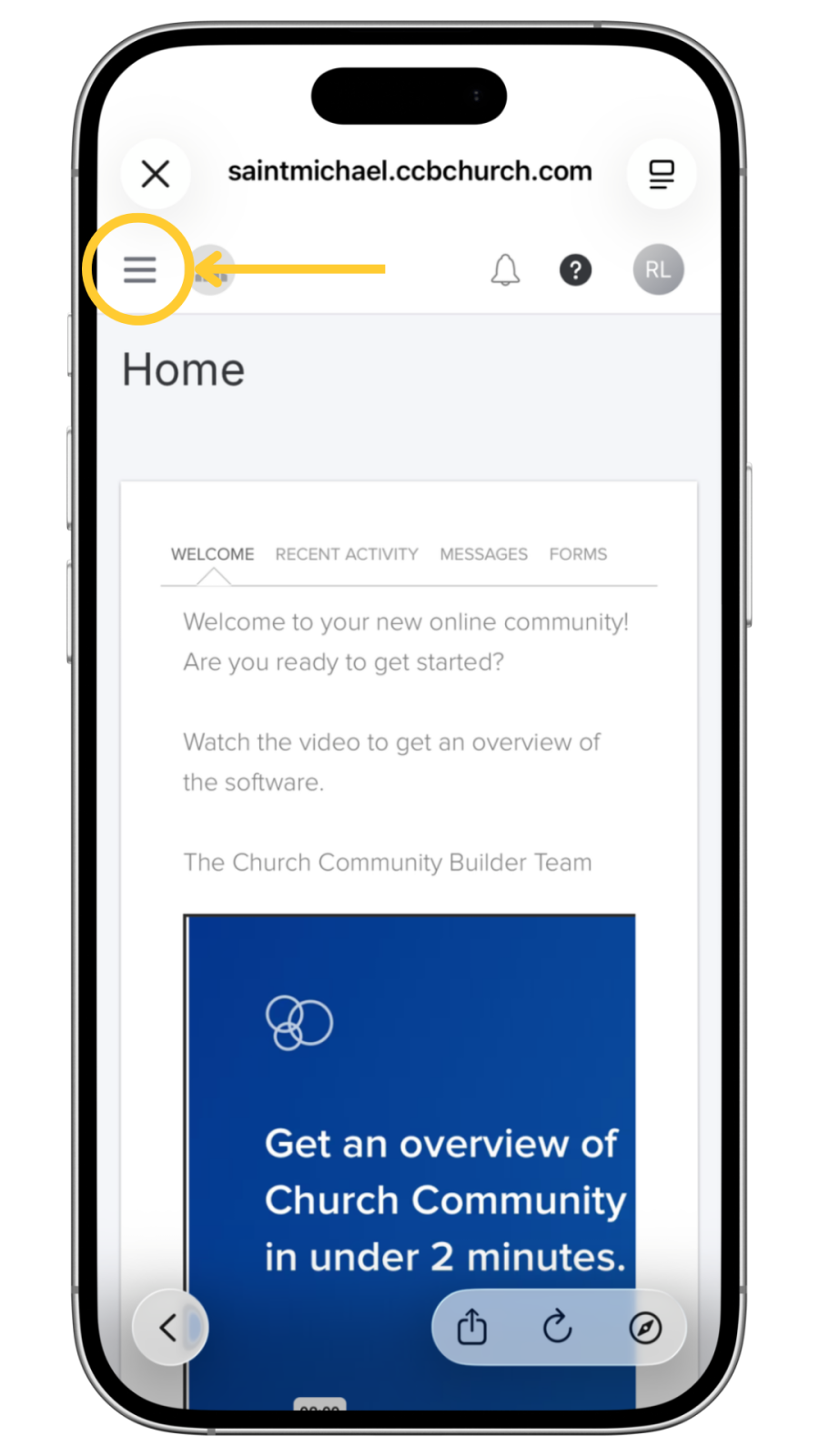
4. Click the menu button in the top, left-hand side of the homepage.
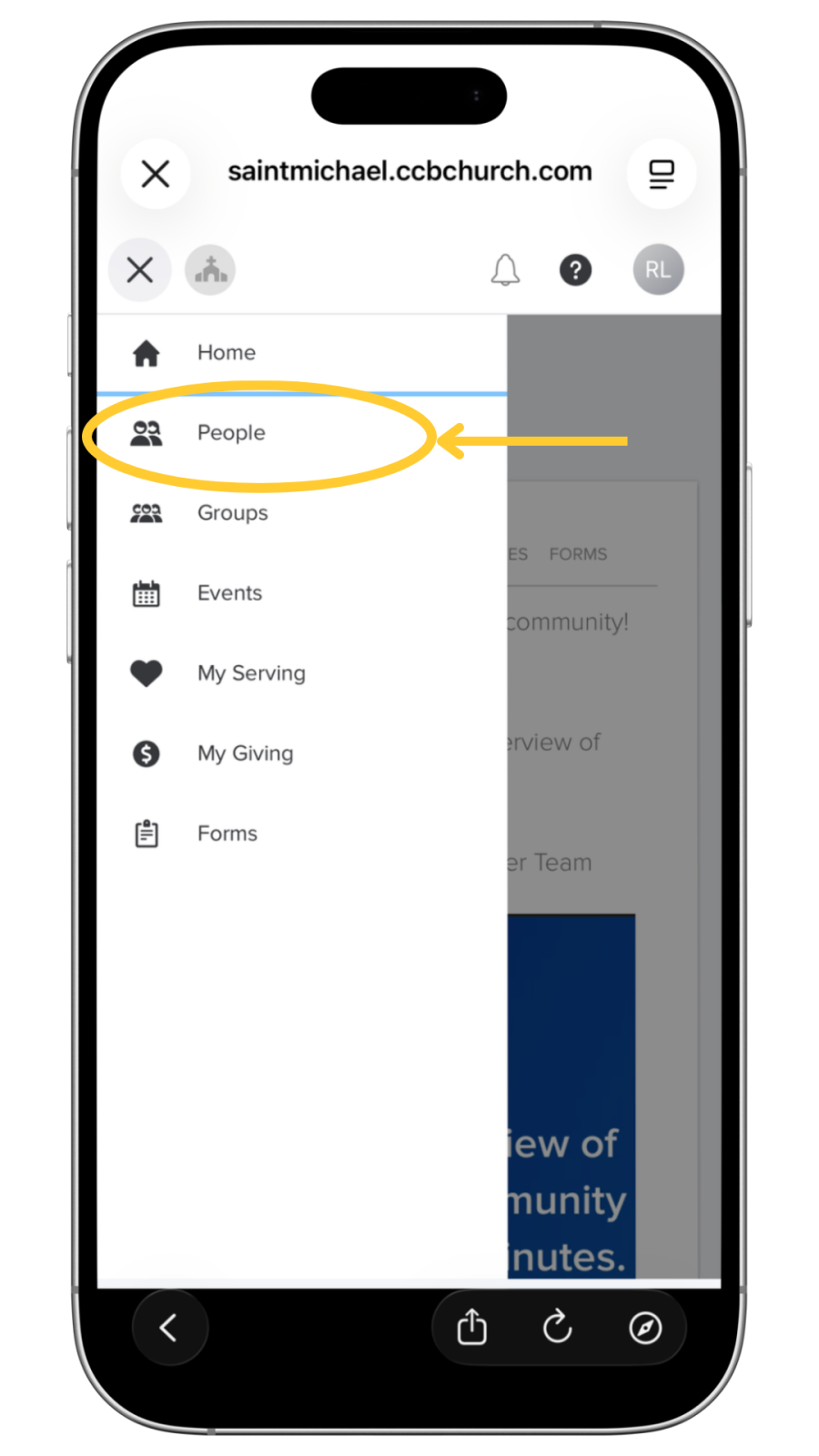
5. Select "People" from the Menu list
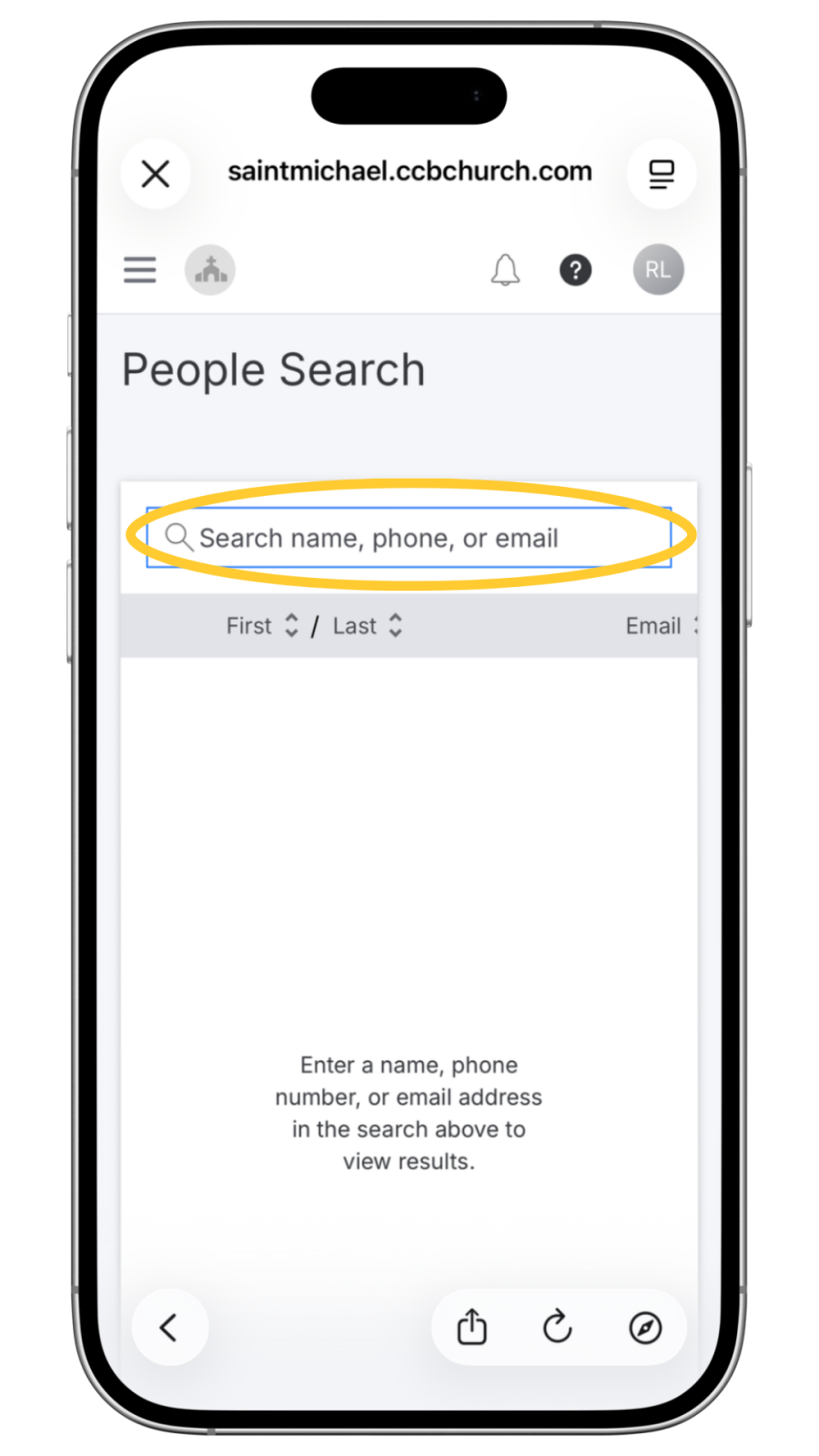
6. Search by entering the name, phone, or email of the person you are looking for.
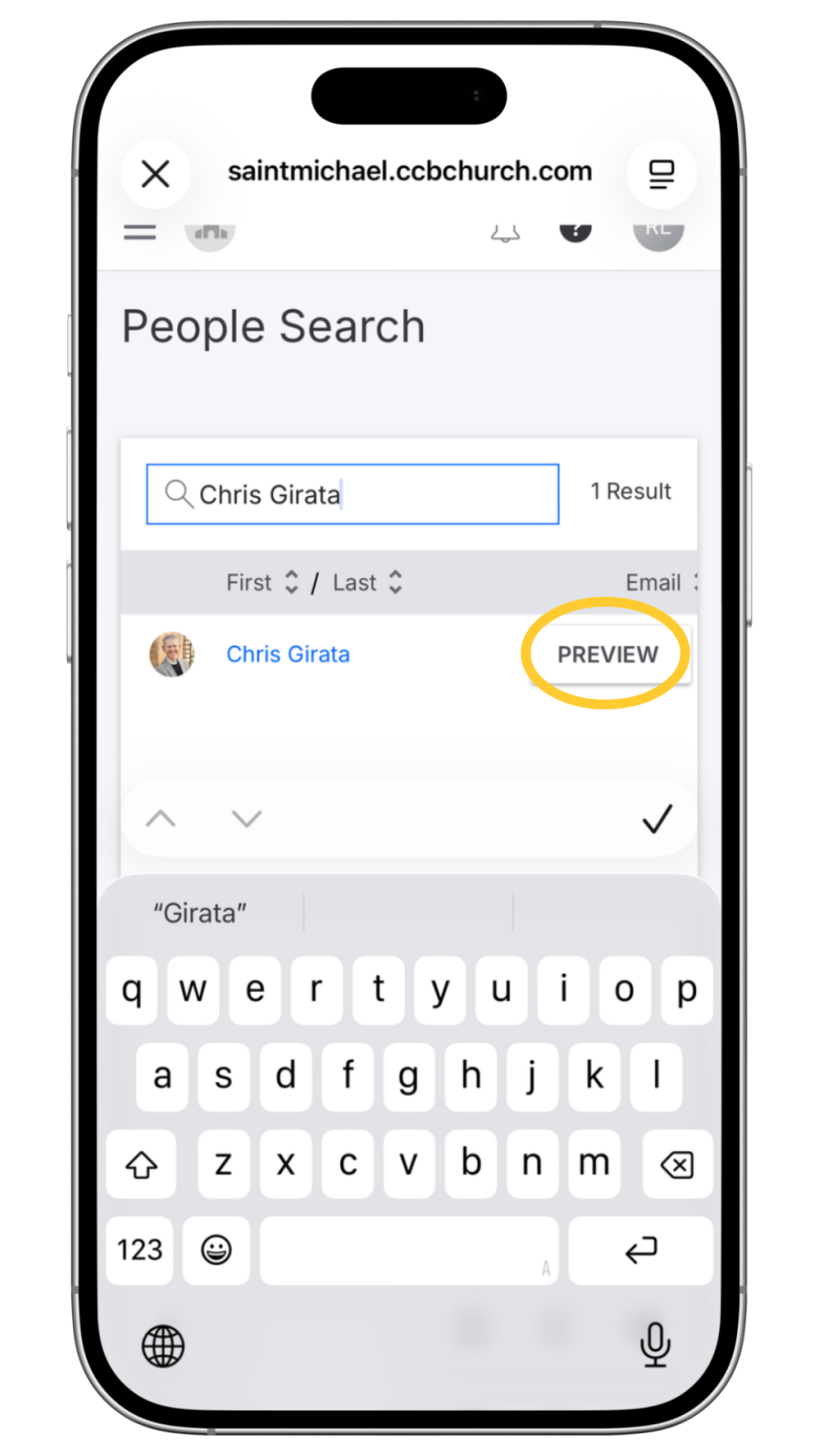
7. Click the "Preview" button next to the person's name.
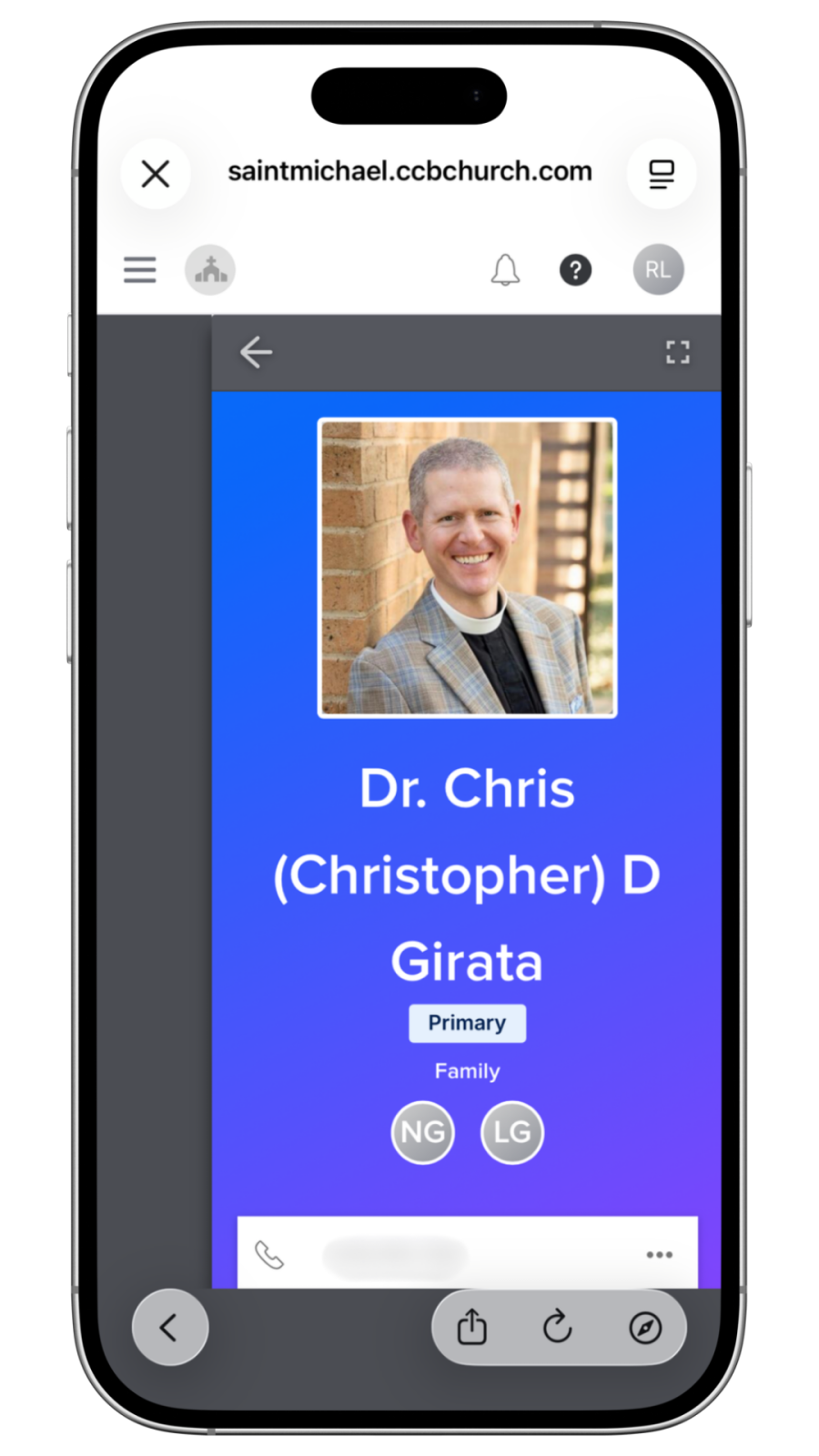
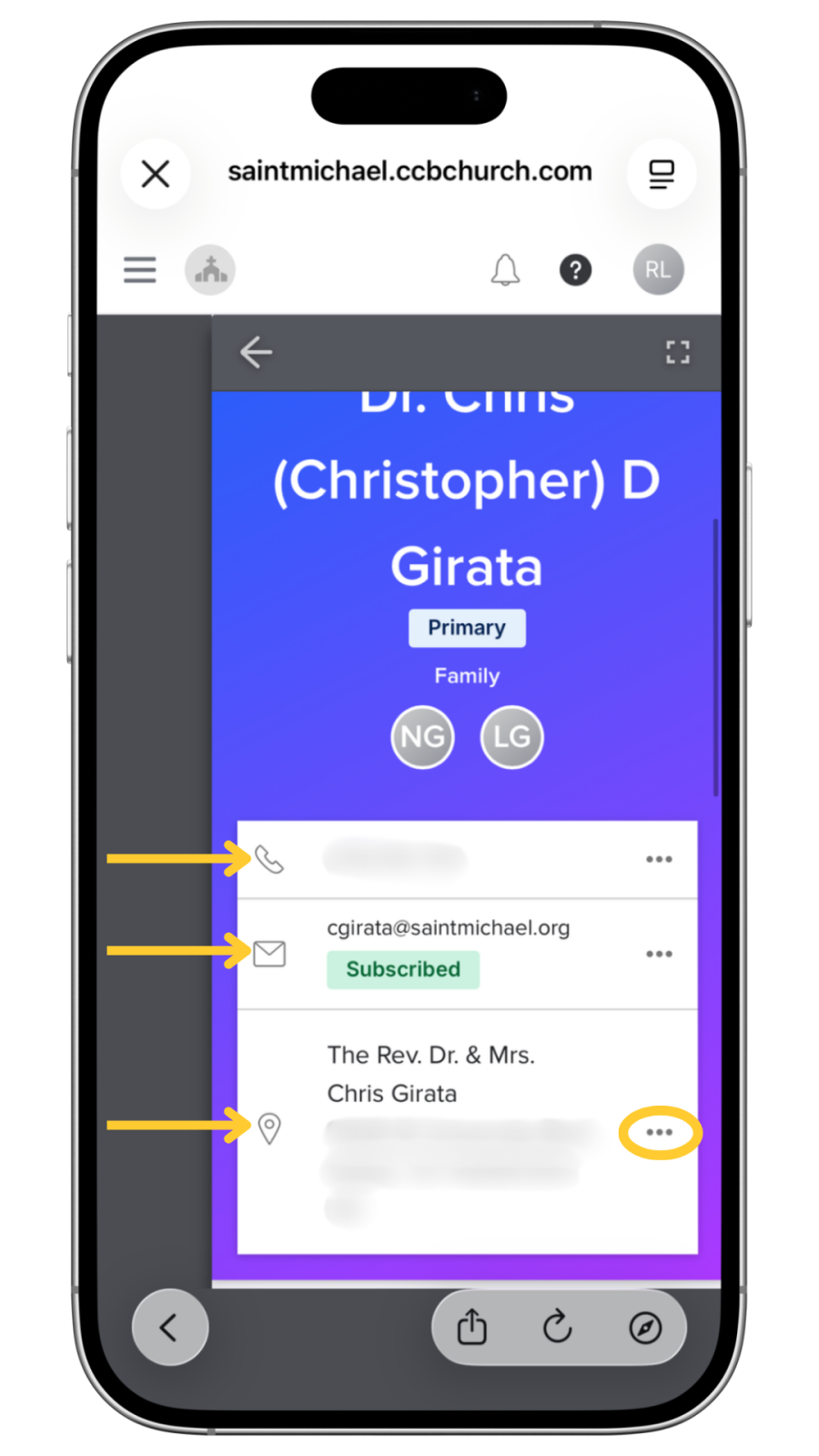
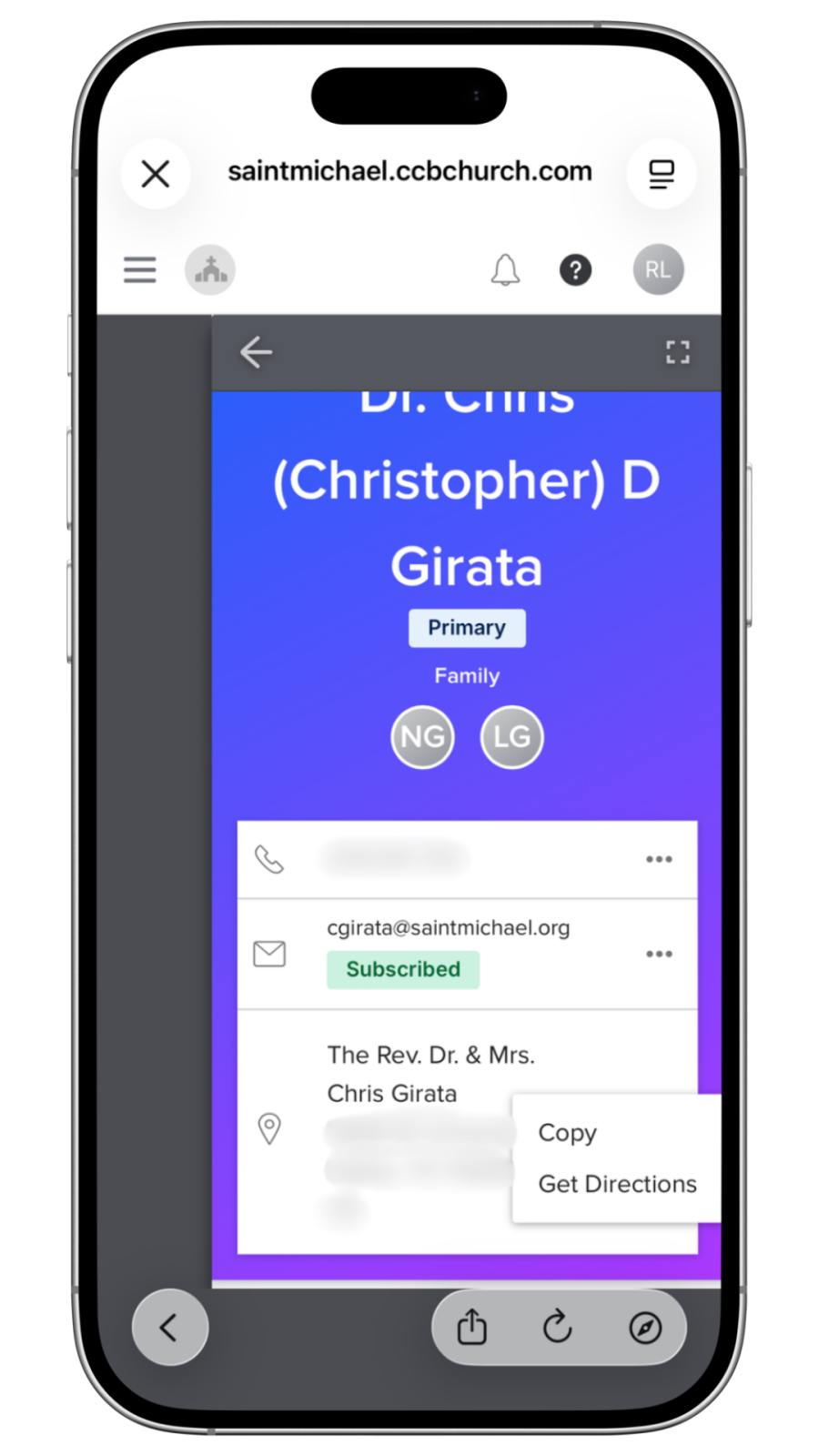
8. Scroll to view the person's phone, email, and address.
9. Click the "..." next to the phone, email, or address to contact the person, get directions, or copy the information.
Managing Privacy Settings
In order to access and edit your privacy settings, you must have an activated login.
- Visit Saint Michael’s Pushpay website: https://saintmichael.ccbchurch.com/goto/login
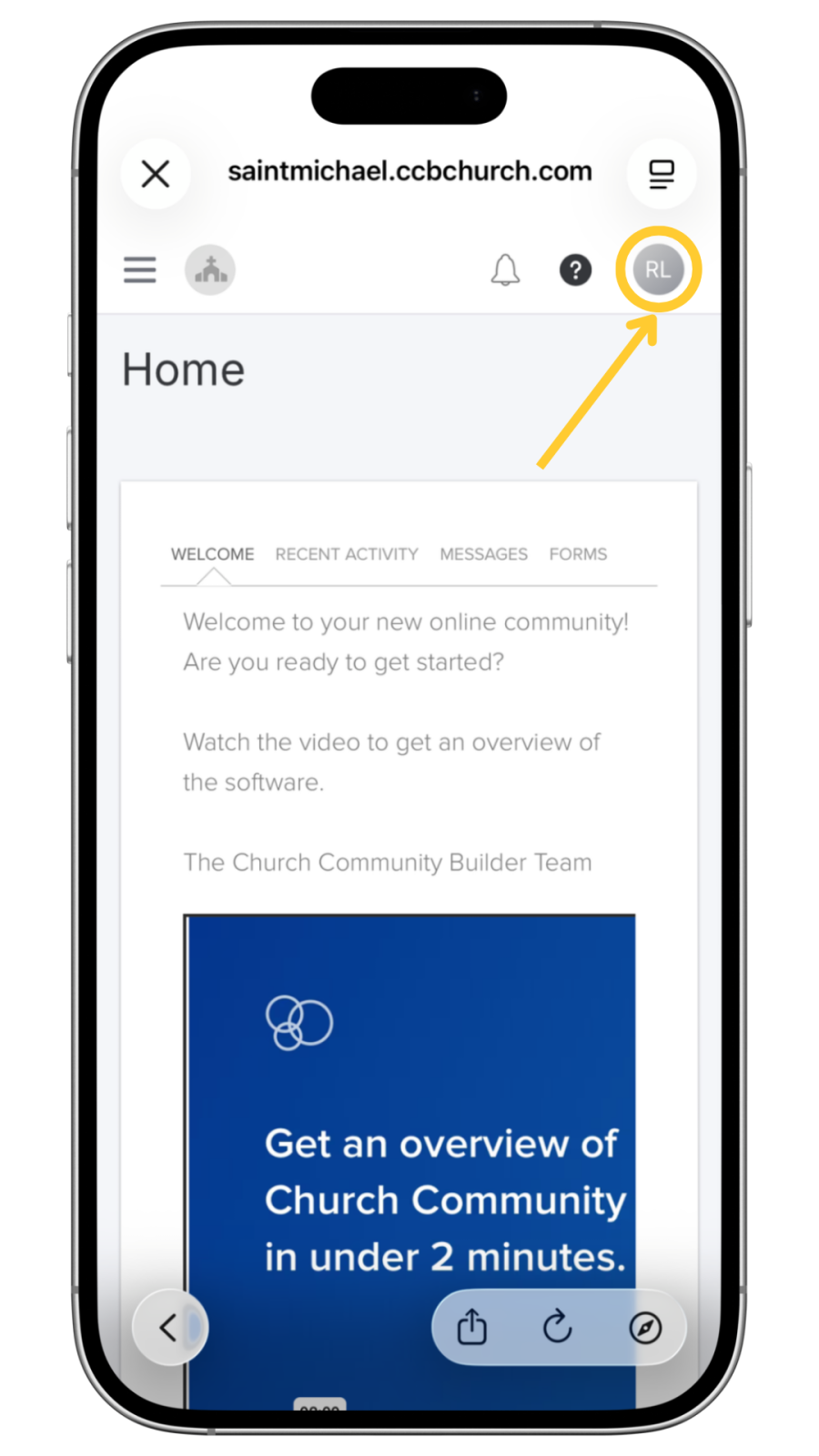
- Click on the profile circle icon in the top right corner.
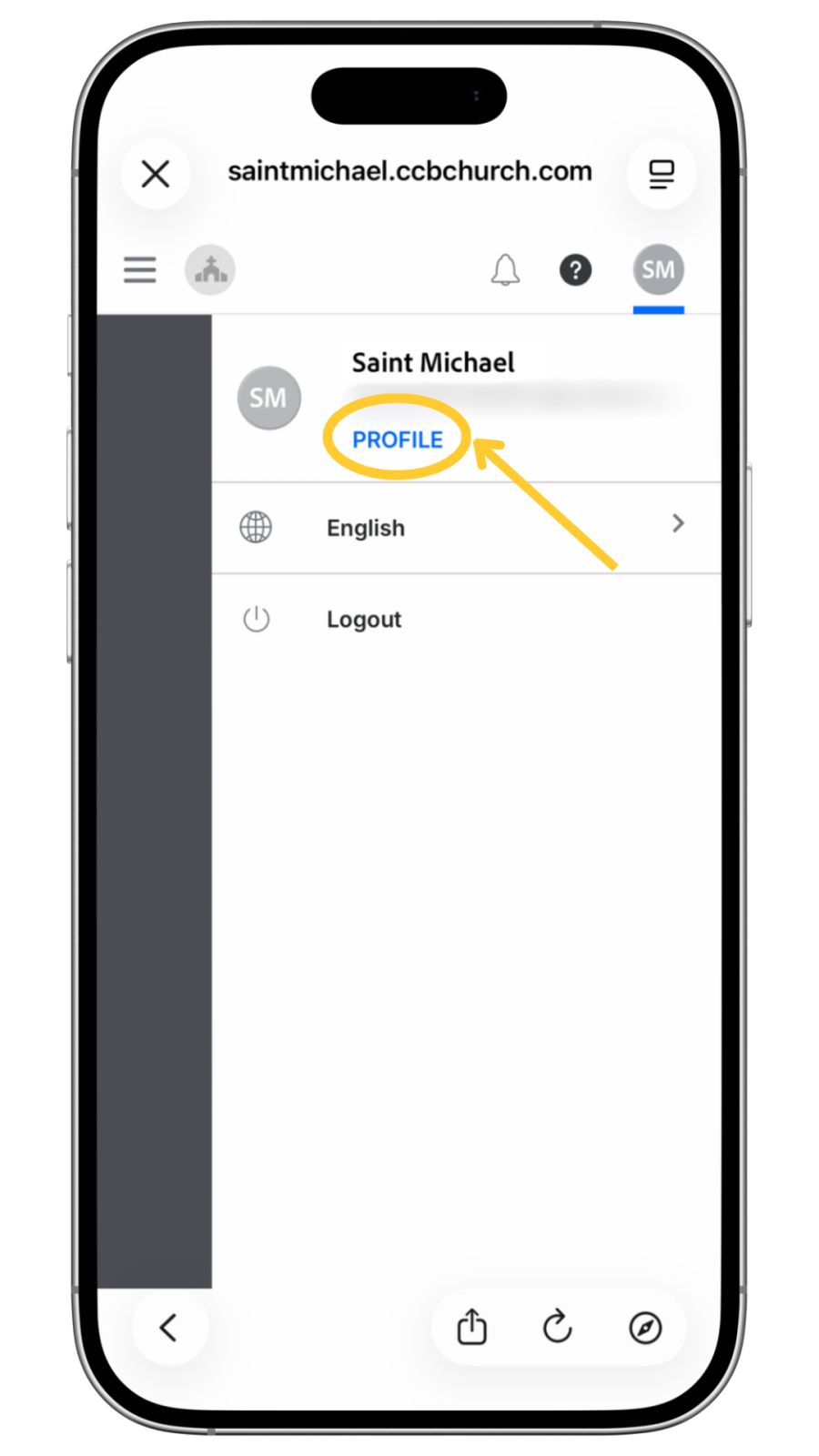
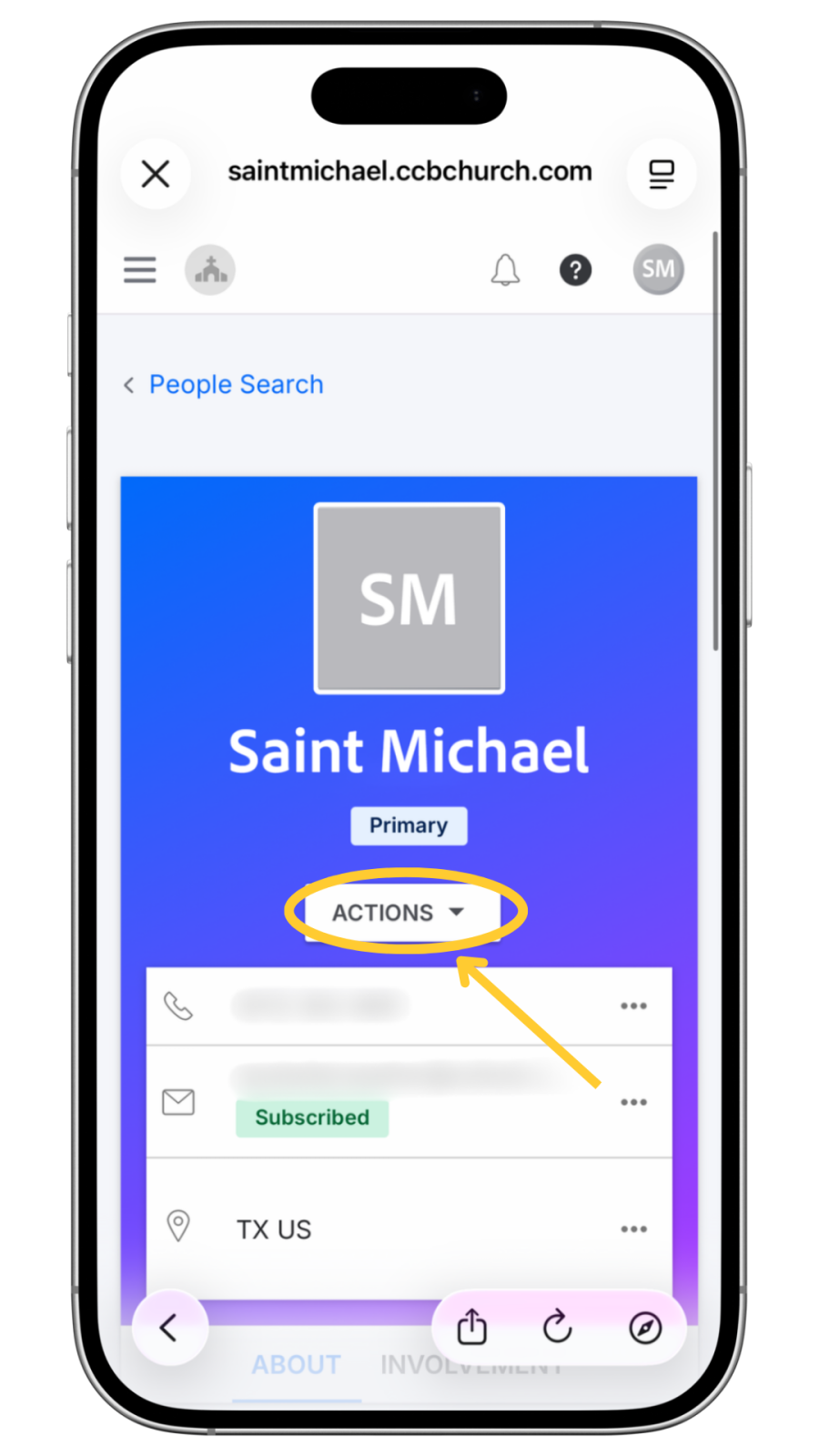
3. Select Profile, then Actions, then Privacy.

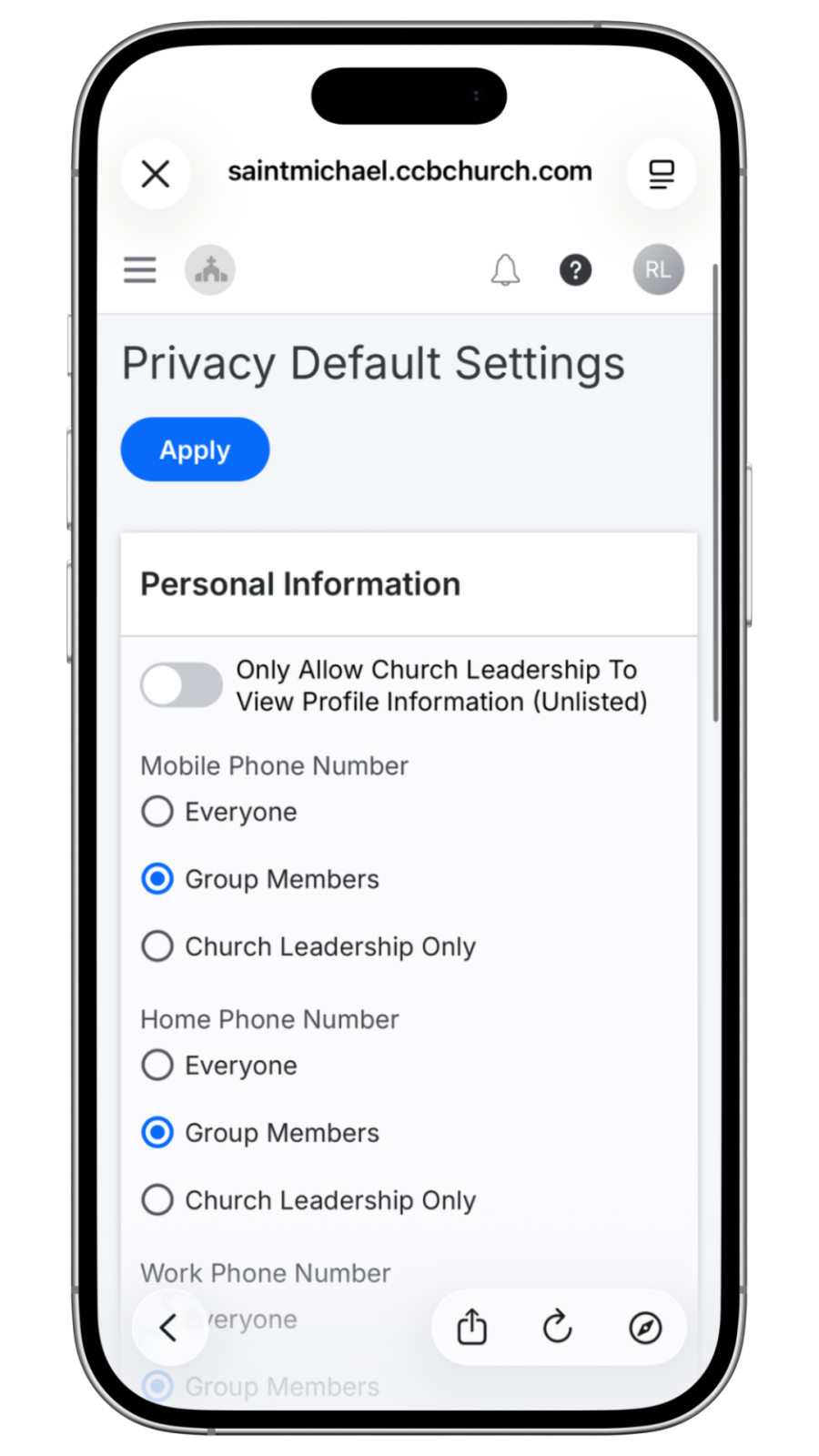
4. You can toggle on the option to “Only Allow Church Leadership to View Profile Information” to restrict all fields to church leadership only.
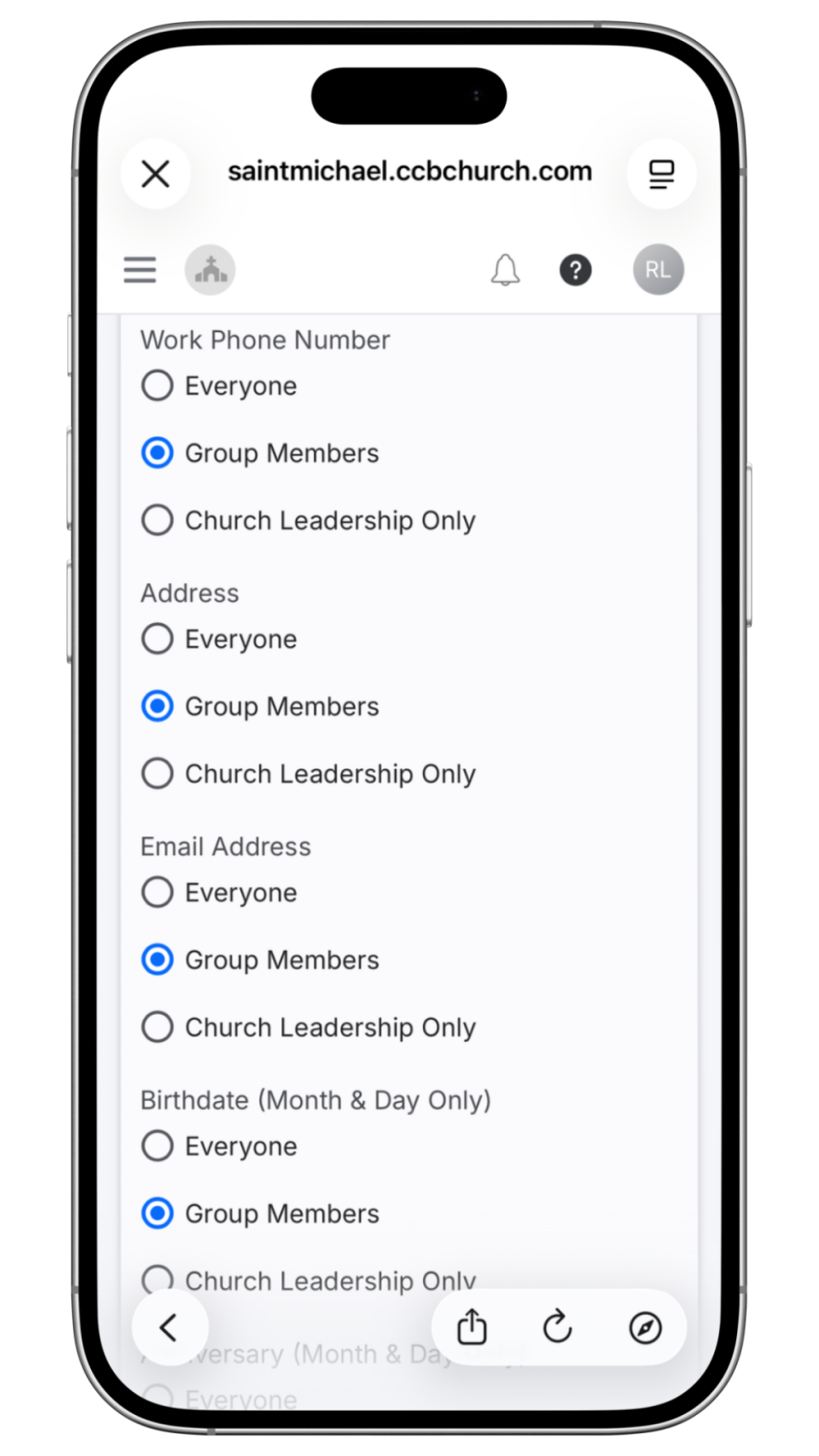
5. Alternatively, you can customize visibility for individual fields (i.e., phone number, address, and email address) by selecting “Everyone” or “Group Members” options for each piece of information.
6. Click "Apply" to save your settings.

Registration and Sunday Check-In
Registration is available for Sunday Adult Classes, including Parent Class and Adult Education. Adults who are already registered do not need to register again. Each Sunday, please record your attendance using the Saint Michael App or a lobby kiosk in the Education Wing.
Children & Family Ministries registration is completed annually each August, and children must check in at a lobby kiosk each Sunday to receive security labels.
Before Your First Visit
- Download the Saint Michael App.
- Sign in using the phone number associated with your Saint Michael account.
- Register for Sunday Adult Classes if you are not already enrolled.
Weekly Check-in
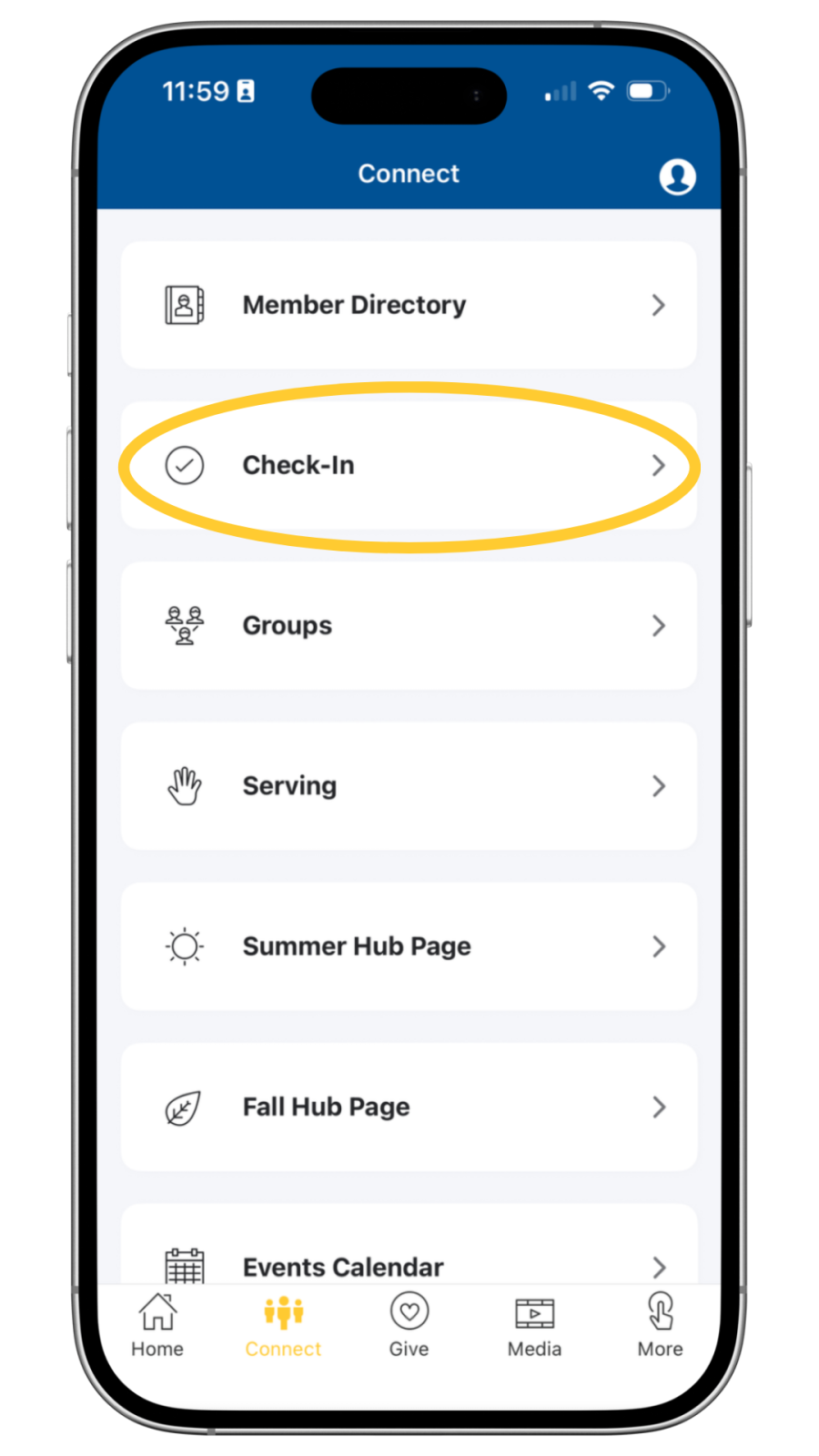
- From the Home Screen in the Saint Michael App, click on the “Connect” tab in the bottom bar.
- In the Connect tab, choose “Check-In”

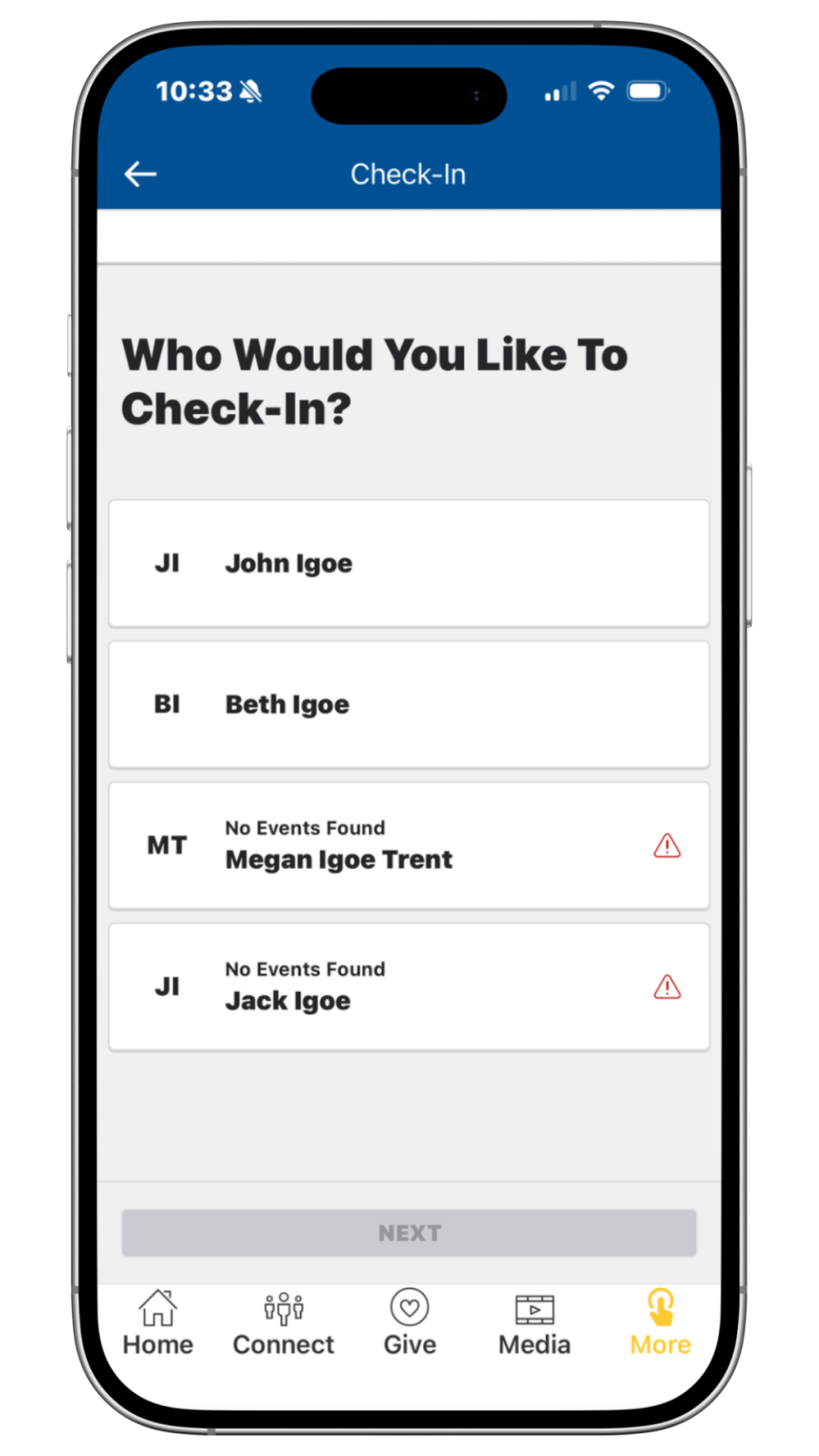
3. Select the person(s) attending Sunday Adult Classes and tap Next. Household members not registered for a class will display 'No Events Found.'
4. Your selected participant will show a blue checkmark. Tap Next to continue.
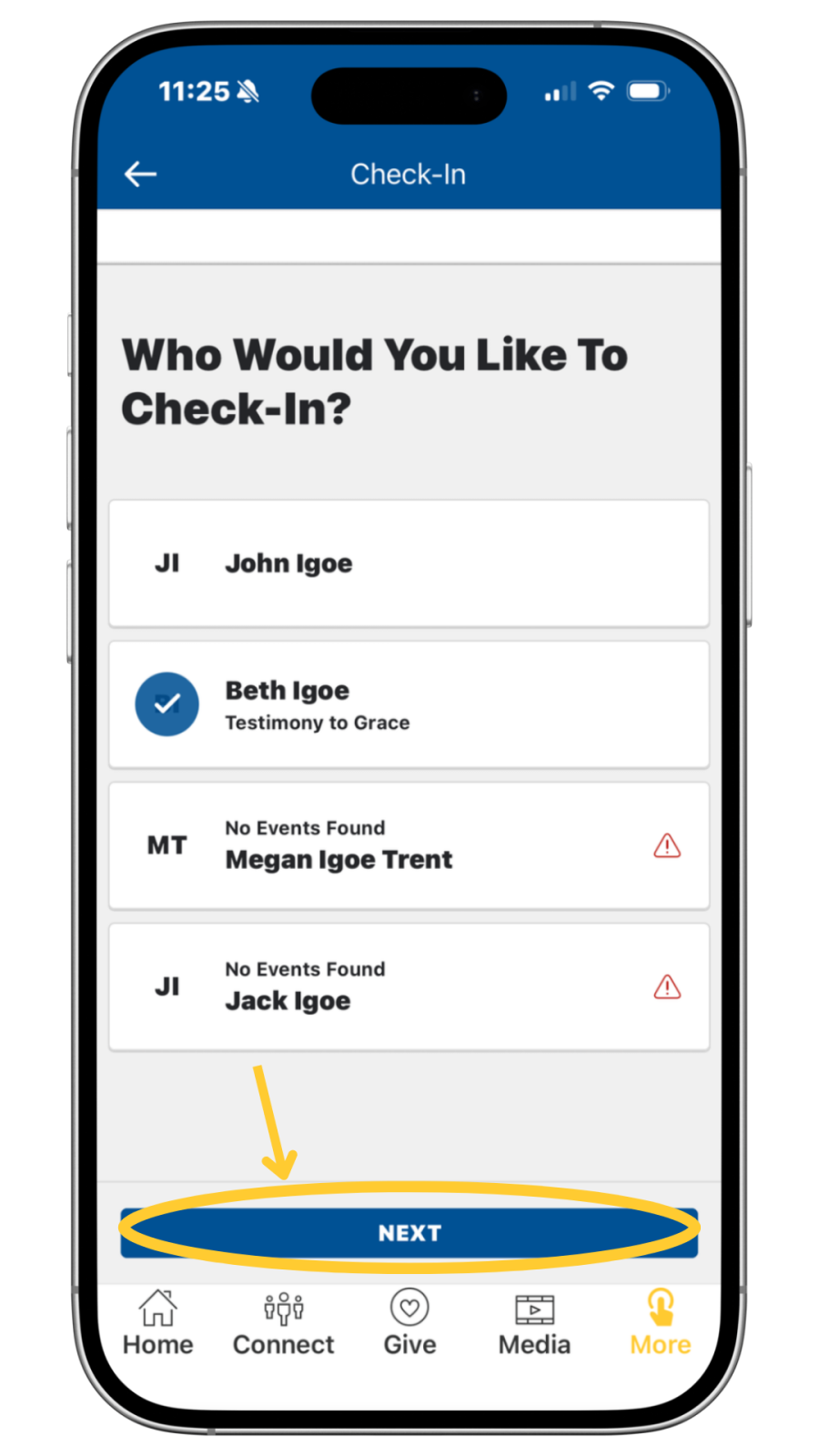
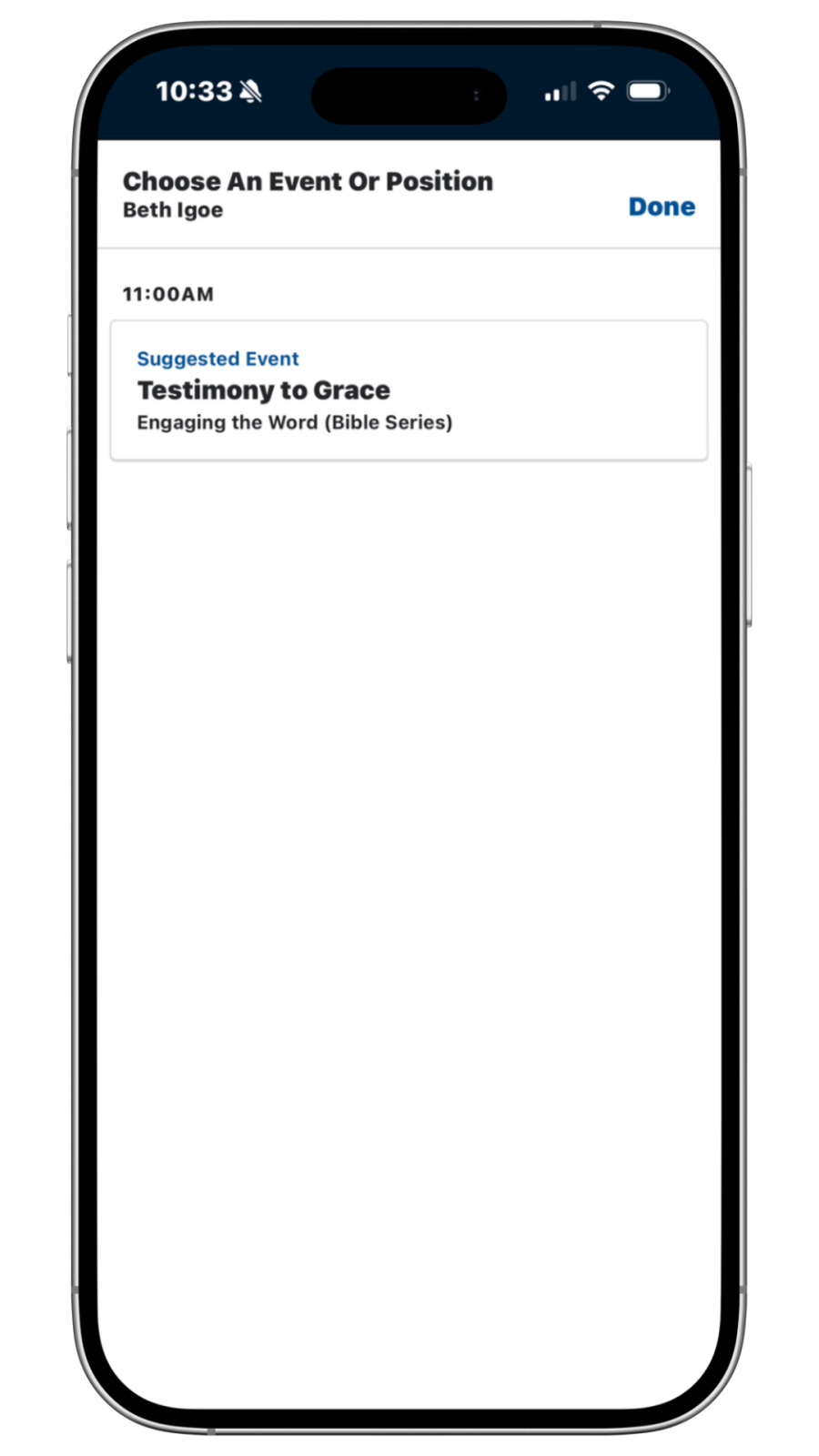
5. Select your Sunday Adult Class event and tap Done.
6. Confirm the selected class (checkmark displayed), then tap Done.
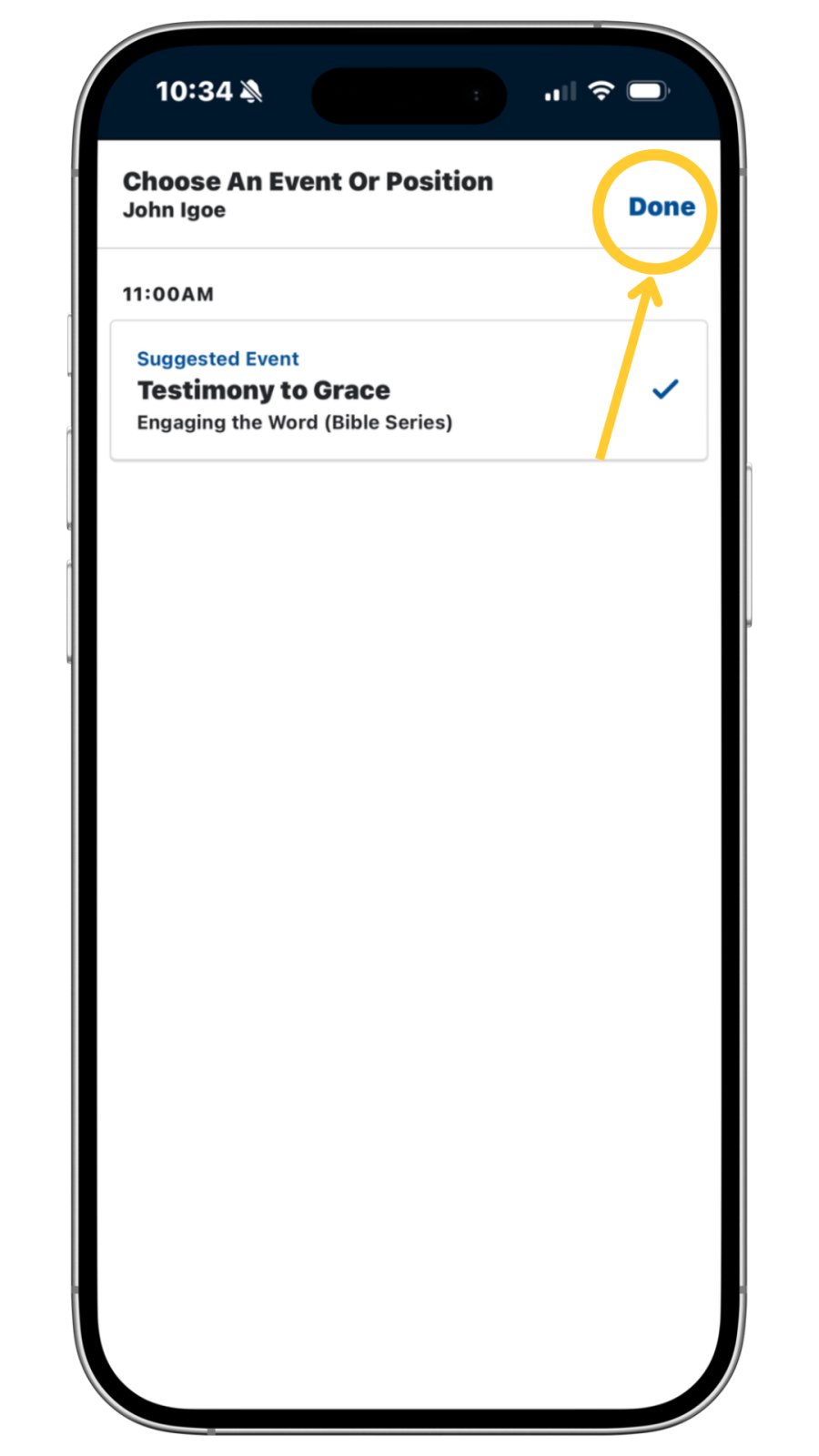
7. Review your selection and tap Next to complete the check-in.
8. Success! Your attendance has been recorded.


Need Help?
- Visit the Help Desk if your class does not appear.
- You may also check in using a lobby kiosk by entering your phone number.
- The Help Desk can assist with app login, registration, and attendance.